
A website login and an API key for a development tool are different security problems. 1Password for Agents can fill a supported agent’s website login after you approve it. For a program that needs a secret, a CLI or service account may be more appropriate. Neither choice makes the agent’s subsequent actions automatically safe.
📑Table of Contents
- Choose where the secret needs to go
- Use 1Password for Agents with supported agents
- Set up 1Password for Agents
- When the agent cannot connect, keep sign-in with the user
- Give a trusted program a secret with op run
- Use a narrowly scoped service account for unattended jobs
- 1Password Environments MCP is for management, not website login
- Frequently asked questions
- Make the first decision
Choose where the secret needs to go
Start with the task, not the integration name. A website needs a signed-in session; an executable may need a key in its environment. Those destinations carry different risks.
| Method | Use case | What receives access |
|---|---|---|
| 1Password for Agents | A supported agent signs in to a website | The approved Login is filled by a browser extension |
| Sign in yourself | An unsupported agent or login method | You enter credentials; check what the agent can do in the resulting session |
op run |
A trusted local application needs a secret | The child process receives the secret as an environment variable |
| Service account | Unattended CI or infrastructure | A token authorizes access to selected vaults and permissions |
| Environments MCP | Manage developer Environments | MCP returns names, not values; a local mount has a separate read boundary |
Sources: Agents, CLI, service accounts, and MCP, checked November 2026.
Use 1Password for Agents with supported agents
1Password for Agents is opt-in and requires a supported agent. You need an individual or family account on 1Password.com, the 1Password app version 8.12.42 or later on the same device as the agent, and a Login item in your Personal or Private vault. 1Password lists apps for macOS, Windows, Linux, iOS and Android.
Team and business accounts, 1Password.ca and 1Password.eu accounts, shared vaults, passkeys and Login items that depend on sign-in providers are not supported by this feature. Check the current support page for the agent you actually use rather than assuming every AI product is compatible.
- Update your 1Password app and check that the Login item has the correct website address.
- Start the connection from the supported agent’s app and follow its instructions; the connection flow varies by agent.
- When 1Password presents a request, review the requesting app, website and suggested Login. Select the right item and approve only if the request is expected.
- Review the result on the website. Sign out when appropriate, because the website controls the resulting session.
In 1Password’s official demo, a prompt asks whether Muse may log in on the user’s behalf, with separate Authorize and Deny buttons. This example does not show the separate step of reviewing a particular website and Login item.
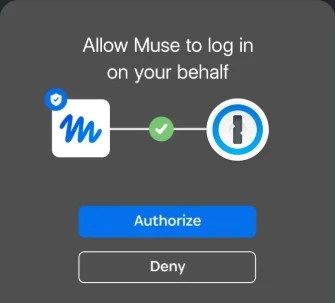
The extension fills the username, password and any saved one-time password into the sign-in form. An approved item may be reused for the same site for up to 30 days without another prompt. To stop that access, disconnect the integration. The steps depend on the agent; for Town, disconnect from Town.
The security documentation describes a confidential-computing enclave decrypting an approved item and sending it to the extension in the agent developer’s browser. After submission, the website and its scripts receive the credentials. Whether a model could see them also depends on the agent developer’s implementation. Review the provider’s safeguards and limit what the agent can do after sign-in.
For the separate Claude-specific integration, see signing in with 1Password for Claude. Its requirements should not be assumed to apply to 1Password for Agents.
Set up 1Password for Agents
A connection allows an agent to request a sign-in; it does not let the agent browse your vault. You still review the Login item when a request arrives. The illustrations below come from 1Password’s public demonstration, not a test of the author’s account.
1. Check eligibility first
You need an Individual or Families account on 1Password.com, a supported agent account, and 1Password 8.12.42 or later on the same device as the agent. Save the site’s username and password as a Login item in your Personal or Private vault. The 1Password app is available on Mac, Windows, Linux, iOS and Android, but each agent supports its own set of devices.
Team and Business accounts, accounts on 1Password.ca or 1Password.eu, shared vaults, passkeys and Login items using sign-in providers such as Google are not supported for this integration. 1Password for Claude on desktop is a separate product with different requirements and provider support.
2. Connect your agent
The 1Password support directory lists the following agents. Availability and plan requirements depend on the provider.
- Claude Duet: on iOS or Android, open Settings → Connections; on the web, open Settings → Credentials. Select Connect next to 1Password. You need Claude Pro, Max or Ultra with Duet access. The mobile app requires iOS version 1.261107.0 or later, or Android version 1.261103.17 or later.
- Muse: open Settings → Connectors, search for 1Password and select Connect. Only one Muse account can be connected to a 1Password account at a time.
- Grok Bot: open Connect apps, find 1Password, select Connect, then Connect 1Password. The desktop app requires version 0.75 or later; the iOS or Android app requires 1.16 or later.
- Instinct: message Instinct asking to connect 1Password, open its link, sign in to Instinct in the browser and select Continue to 1Password. You need the 1Password iOS or Android app.
- Town: find 1Password on Town’s Integrations page and select Add account. Town says the integration is currently limited to selected testers.
Follow the link to 1Password.com, sign in to the account you want to use, and approve the connection. Never put a password or one-time code in the agent’s chat.
3. Approve a website login
- Ask the agent to perform a task that requires signing in. For Instinct and Town, open the approval link the agent sends you.
- In 1Password, check the requesting agent, website and suggested Login item. Search for another item if necessary, or deny an unexpected request.
- Approve the intended item. 1Password fills and submits the sign-in form.
The official illustration shows Muse requesting a LinkedIn login and offering 1Password as an option. Your agent’s actual screens and sequence may differ.
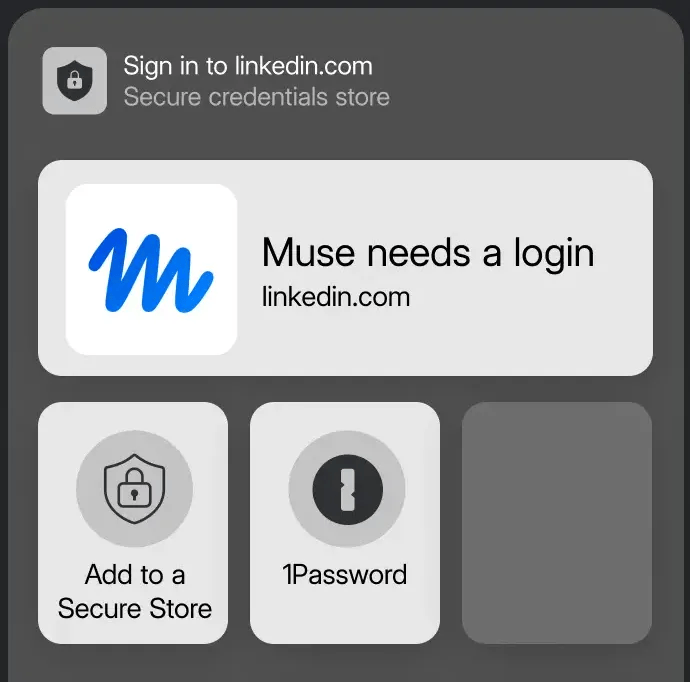
If no Login is suggested, check that the item is in Personal or Private and that its website matches the sign-in site. If the connector is missing, update the agent app and check the provider’s eligibility requirements.
4. Check the sign-in and task result
Return to the agent and check that it reached the signed-in site and completed the requested task. The site may require additional verification or block automation.
5. Disconnect when you are done
An approved Login may be reused for the same website for up to 30 days without another prompt. Once signed in, the agent can use whatever site permissions the account has; review the actions you permit and sign out of the website when appropriate.
For Claude Duet, Muse, Grok Bot or Instinct, sign in to 1Password.com, open Integrations → Autofill for AI, select the agent and choose Disconnect. That also removes its existing approved login requests. Town is different: disconnect on Town’s Integrations page. Town says revocation from inside 1Password is not supported yet. Signing out of a website and disconnecting an integration are separate actions.
When the agent cannot connect, keep sign-in with the user
Do not paste a password or one-time code into an AI conversation to work around missing support. Sign in yourself. If your AI product supports working in an existing browser session, check its instructions and permission controls before handing over a narrowly defined task. Some products cannot take over your existing session at all.
This also applies to a passkey or organizational SSO flow when you cannot verify support. An authenticated agent can still read information or make changes permitted by the site. Review sensitive purchases, messages and settings changes yourself, and end the site session when it is no longer needed.
Give a trusted program a secret with op run
The 1Password CLI can resolve a reference at execution time. The following is an illustrative placeholder, not a real credential. Install and authenticate the CLI yourself and prepare an appropriate vault item before adapting it.
# example.env: fictional reference only
API_TOKEN=op://ExampleVault/ExampleItem/password
op run --env-file=example.env -- ./your-trusted-app
Replace your-trusted-app with the actual executable after reviewing what it does. op run resolves the reference and supplies the secret to that child process as an environment variable. The process can read it, and anything it launches may inherit it. Do not run unreviewed code with production secrets merely because the reference itself contains no secret value.
1Password masks secrets printed to standard output and standard error by default. Masking is not a guarantee against every transformed value or leak. Design the program not to print credentials and keep them out of AI conversations, tool results, logs and source control.
A local CLI walkthrough
Use a macOS or Linux terminal with sh, bash or zsh and Python 3 for this example. This CLI workflow supplies a program with an environment variable; it is separate from website sign-in with 1Password for Agents. Start with a test item containing a fictional value, not a production credential.
- Install and authorize the CLI. Follow the official setup guide and check the installation with
op --version. Open and unlock the 1Password desktop app, then enable Settings → Developer → Integrate with 1Password CLI. Approve authentication prompts yourself when you run commands. If you have multiple accounts,op signinlets you choose one. - Copy a reference. In the desktop app, open the test item and select Copy Secret Reference from the field’s menu. The basic form is
op://<vault>/<item>/<field>; a field inside a section also needs the section name. See the reference syntax. A reference can reveal vault and item names, so treat it as potentially sensitive metadata. - Create the environment file. In your working directory, create
example.env. Replace the fictional reference below with the one you copied; do not put the secret value in the file. Environment files can reveal names and other metadata, so check before sharing and add them to.gitignorewhen appropriate. Adding a file to.gitignoredoes not stop Git tracking it if it is already tracked.
API_TOKEN=op://ExampleVault/ExampleItem/password
- Write a small check. Save the following as
check_secret.pyin the same directory. It checks only whether the variable is nonempty; it neither prints the value nor sends it over the network.
import os
import sys

if not os.environ.get("API_TOKEN"):
    print("API_TOKEN is missing")
    sys.exit(1)
print("API_TOKEN is present")
- Run it. Approve the CLI authentication request yourself.
API_TOKEN is presentmeans the child process received a nonempty value; it does not prove that a key works with an external service. If it fails, check authentication, vault access, the reference and the filename.
op run --env-file=example.env -- python3 check_secret.py
Before substituting a real application, review the executable and its dependencies and limit access to the vaults and permissions it needs. The child process can read the value and may pass it to other processes or send it elsewhere. Keep secrets out of debug output, logs, AI conversations and repositories. For unattended CI, use the service-account approach below rather than relying on an interactive desktop approval.
Use a narrowly scoped service account for unattended jobs
A service account provides machine authentication for jobs such as CI. Create one with access only to the dedicated vaults and permissions the job requires. Its vault access and permissions cannot be edited after creation; plan a replacement and revoke the old account when the scope must change.
The built-in Personal, Private and Employee vaults and the default Shared vault cannot be assigned to a service account. Using one with the CLI requires version 2.18.0 or later. The token is shown only once and is itself a password-equivalent secret. Store it securely and supply it through the CI platform’s secret mechanism, not an AI chat or shell history. Revoke the account when it is no longer needed.
1Password Environments MCP is for management, not website login
The Environments MCP server lets compatible clients manage Environments and list secret names without returning secret values in MCP responses. It requires the desktop app, an Environment and a local client supporting stdio. Enable Settings → Developer → Integrate with MCP clients, then follow the official setup instructions for your client and review authorization prompts in 1Password.
A local .env mount changes the exposure. On macOS and Linux it supplies contents on demand rather than storing plaintext contents on disk. Once a read is approved, any local process can read the mount until 1Password locks or you disable it. An AI tool with file access may therefore be able to read secrets even though MCP itself does not return them. Disable the mount when unnecessary and lock 1Password after use.
Frequently asked questions
Does each agent login require a fresh approval?
No. An approved item may be used again for the same website for up to 30 days. Disconnecting the integration revokes associated approvals.
Does op run hide secrets from the application?
No. It gives the actual value to the child process. Trust and constrain the executable, its children and their output; default output masking is not a complete leak-prevention boundary.
Does signing out of the website disconnect the integration?
No. The website session and the 1Password integration are separate. Check both when ending access.
Make the first decision
For a website, verify whether your agent is supported; otherwise sign in yourself. For a developer secret, identify the exact process that needs the value and restrict its access. In both cases, decide separately which actions the agent may perform after access is granted.


Author
Over 20 years in the IT industry, serving as Division Head and CTO at multiple companies running large-scale web services in Japan. Experienced across Windows, iOS, Android, and web development. Currently focused on AI-native transformation. At DevGENT, sharing practical guides on AI code editors, automation tools, and LLMs in three languages.


🔥 Most Popular



Leave a Reply