
Grok Bot can work across websites and connected apps from a hosted computer. Before giving an agent access to an account, check both the subscription terms and the authority that account carries. A small, reviewable task is a better first test than an unattended change.
📑Table of Contents
Grok Bot pricing: check the actual offer
The product page listed these monthly-billed prices when checked in November 2026. The amounts are US dollars; check taxes, availability, and the final checkout terms for your account.
| Plan | Monthly billing | Included usage as described by xAI |
|---|---|---|
| Premium | $30 per month | Weekly Grok Bot usage included |
| Super | $100 per month | 3.5 times Premium usage |
| Ultra | $200 per month | 12 times Premium usage |
Source: xAI Grok Bot product page, November 2026.
The page also says eligible existing Premium, Super, Ultra, Teams, or Enterprise plans can include Grok Bot. Sign in to see whether your particular subscription qualifies. The original launch announcement describes availability at launch; it should not be substituted for today’s plan page.
For plan prices and the shared usage allowance, see our guide to The X Subscription.
Create a Bot with a narrow first job

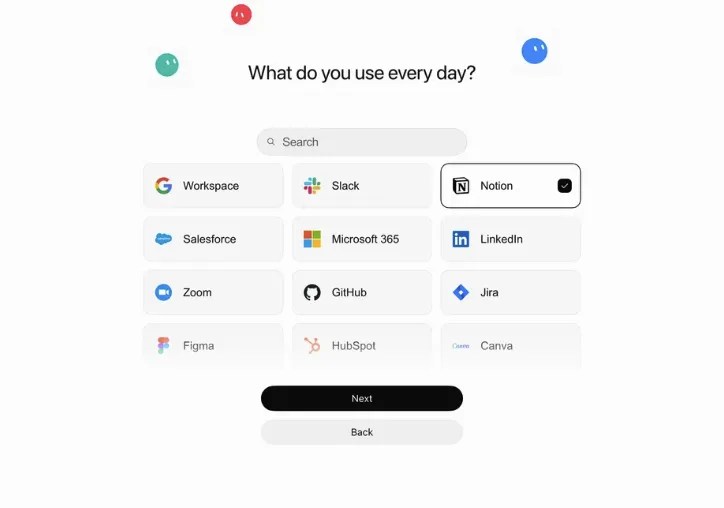
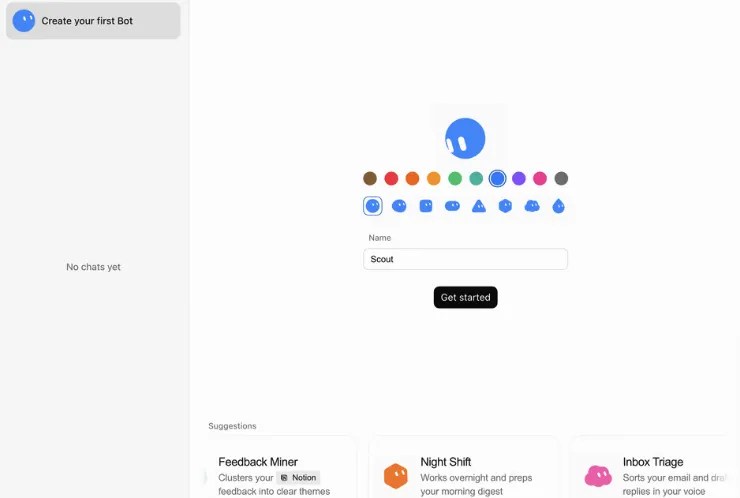

A Bot has its own conversation and working context. You can give it a task in ordinary language, and the product describes routines and collaboration among multiple Bots. Those features do not remove the need to review its work.
- Check the product page for the app and your plan eligibility, then sign in.
- Select New Bot or the + button in the sidebar. On a team, select Create a Bot from the menu.
- Name the Bot and send a first message describing the goal, sources, deliverable, and actions that require your approval.
- Review the result and its cited sources before relying on it or granting more access.
For example: “Read these public pages and draft a brief with links to the sources. Do not send messages or change files. Ask me before taking any external action.” This is an example instruction, not a guarantee of behavior. The Bot guide documents the creation flow.
Divide a workflow between Bots and reusable skills
Consider a hypothetical research brief: one Bot gathers public sources, while another turns the findings into a draft for you to review. Give each Bot a clear job, sources, and approval boundaries. This is an illustration, not a report of a test.
For work you repeat, ask a Bot to save the completed process as a skill: include the source list, checking steps, output format, and a rule to seek approval before sending anything. You can later ask for that skill by name. Your private skills are shared across your Bots, although a particular Bot may need the skill enabled and access to the relevant apps.
Where Teach a task is available, you can demonstrate a browser workflow and review the draft skill it creates; test it with safe inputs. A skill is reusable instructions, not a schedule. To run work at a specified time or on an event, set up a separate routine with the Bot. See the skills and routines guide.
Bots can hand work to one another in a group or send asynchronous messages to another Bot. In the example, the researcher could pass source links to the writer; you would check the draft before using it. Groups hold two to six Bots. Handoffs sent in individual chats do not appear in the group, and approval or login requests do not appear there either, so check the individual chats too. The collaboration guide explains limits that depend on where you ask.
Inter-Bot replies count toward usage, as do routine runs and tests. Check your plan allowance before adding frequent automation. Bots belonging to the same member share a hosted computer, and external sends or changes should remain behind approval and human review.
What access does Grok Bot get?
According to the security documentation, a Bot normally acts as its signed-in member. A connected app can therefore expose whatever that member is allowed to see or change. Team-managed connectors are an exception: they can use team or service-account credentials. Review the permissions of the actual account behind each connection.
Each Bot has its own conversation and memory, but a few facts about you, such as your name and time zone, are shared among your Bots. The same member’s Bots also share a hosted computer. Files and browser sessions are not automatically isolated just because you created another Bot. Deleting a Bot can leave files and sign-ins on that shared computer; sign out, remove unneeded files, and revoke connected-app access separately when appropriate. See the Bot guide and security guide.
Put approval and access boundaries in place
Ask for approval before consequential actions such as sending an external message or changing a record. When an approval card appears, inspect its target and effect before allowing it. The official documentation says Auto Review can allow, ask, or deny risky actions, but it does not review every side effect.
External webpages and tool results can also contain instructions intended to redirect an agent. The provider describes defenses against this kind of prompt injection, but says they reduce rather than eliminate the risk. Limit connected accounts and retain human review instead of relying on a single control.
Never put passwords or one-time codes in ordinary chat. For workplace use, check your organization’s data policy: the security guide says hosted computers run in the United States, and some network and administrative controls are Enterprise-only. Local computer execution is controlled separately from the hosted computer.
Frequently asked questions
Start with a reviewable result
Confirm your plan first, then try a public-source research brief that requires no sending or editing. Check its citations and output yourself. Connect additional services only when the task warrants their permissions.


Author
Over 20 years in the IT industry, serving as Division Head and CTO at multiple companies running large-scale web services in Japan. Experienced across Windows, iOS, Android, and web development. Currently focused on AI-native transformation. At DevGENT, sharing practical guides on AI code editors, automation tools, and LLMs in three languages.

🔥 Most Popular
- Claude Code CLI vs Web vs Desktop: A Daily User's Guide (2026)
- Claude Code Skill: Hands-On SKILL.md, Auto-Invoke & Teams (2026)
- Claude Desktop Won't Install? Windows & Mac Fixes That Worked (2026)
- Zed Language Support & IME Issues: CJK Input, i18n Status — Complete Guide (2026)
- Install OpenClaw: Node 24 or 26 (November 2026)



Leave a Reply