
I switched from Devin Desktop (formerly Windsurf) to Zed in late 2025 and have been running it as my daily driver ever since — in a Japanese-language environment, on macOS 26.4, writing Python, Rust, and TypeScript + Next.js every day. My AI workflow is centered on Claude Code launched inside Zed’s built-in terminal, not the editor’s own AI panel. That combination — a featherweight native editor paired with an external CLI agent — is what finally convinced me to leave a Cursor/Windsurf-style all-in-one behind.
📑Table of Contents
- Three Layers of “Language Support” in Zed
- Layer 1 — Programming Language Support (70+)
- Layer 2 — UI Localization (i18n) Status [July 2026]
- Layer 3 — IME Input Issues (The Big One)
- CJK Font Rendering Issues
- Vim Mode + IME — No Auto-Switching
- How Zed Compares for Non-English Development [July 2026]
- Why I still use Zed daily — measured data from my machine
- Who should (and shouldn’t) use Zed in a CJK environment
- FAQ
- The Bottom Line
But I’ll be blunt: as a Japanese (ATOK) user, IME compatibility in Zed is still the single biggest pain point of my day. Multiple times per day, I try to type “AI” into a Claude Code prompt and Zed’s command palette fires instead, dumping me into the MCP settings page mid-sentence. I have not yet figured out a perfect keybinding fix, so I bounce between three imperfect workarounds (described in detail below). And yet I don’t want to go back — Zed is too fast, too lightweight, and too well-matched to the CLI-agent workflow to give up. This article is my honest, daily-user’s field report on what works, what hurts, and how I decide when to recommend Zed to other CJK developers.
The short version: macOS works, Windows is catching up fast, Linux is still painful, the UI is English-only, and Vim + IME auto-switching does not exist. Zed’s “language support” is actually three completely different stories layered on top of each other, and you need to separate them to make an informed call.
📖 What you’ll learn in this guide
- A three-layer mental model for Zed’s “language support”: programming languages vs. UI locale vs. IME input
- Per-OS IME reality check (macOS / Windows / Linux) grounded in my daily usage, not marketing copy
- The specific ATOK × Zed command-palette misfire that hits me every day — and the three workarounds I actually use
- How Zed stacks up against VS Code, Cursor, and Devin Desktop (formerly Windsurf) for non-English developers
- Why I still choose Zed despite these issues — with measured data (startup time, memory footprint, search speed)
- A diagnostic checklist for deciding whether Zed fits your CJK workflow
🧑💻 My test environment
- OS: macOS 26.4
- Zed version: 1.9.0 (Zed reached v1.0 in April 2026)
- Primary languages: Python / Rust / TypeScript + Next.js
- IME: ATOK (Japanese)
- Time on Zed: Since late 2025 — migrated from Windsurf
- AI agent: Claude Code, launched from Zed’s integrated terminal
Three Layers of “Language Support” in Zed
When developers ask “Does Zed support my language?”, they could mean three very different things. Understanding these layers is critical before you commit to Zed as your daily driver.
| Layer | What It Means | Status |
|---|---|---|
| ① Programming Languages | Syntax highlighting, LSP, Tree-sitter grammars | ✅ 70+ languages |
| ② UI Locale (i18n) | Menus, settings, dialogs in your language | ❌ English only |
| ③ Input Languages / IME | Typing in CJK, Arabic, Indic scripts via input methods | ⚠️ Varies by OS |
Layer ① is solid. Layer ② is nonexistent. Layer ③ is where things get complicated — and where most non-English developers hit unexpected friction.
Layer 1 — Programming Language Support (70+)
Zed’s programming language support is excellent and on par with the competition. The architecture is built on two pillars:
Tree-sitter Grammars
Incremental parser that re-parses only the edited region on each keystroke (not the entire file), keeping syntax highlighting, code folding, and structural selection responsive as buffers grow. Grammars are compiled to WebAssembly for consistency and speed.
LSP Integration
Full Language Server Protocol support provides autocomplete, go-to-definition, diagnostics, and refactoring. Zed auto-downloads and configures LSP servers for most languages.
TypeScript, Rust, Python, Go, C/C++, Java, Ruby, PHP, Swift, Kotlin — all the major languages work seamlessly. Community extensions add support for niche languages. This layer is not a concern for any developer choosing Zed.
Layer 2 — UI Localization (i18n) Status [July 2026]
Zed reached its v1.0 milestone in April 2026 and has shipped steady updates through v1.9 since, but as of July 2026 its user interface is still English only. There are no official language packs, no locale settings, and no way to translate the menus, command palette, settings panel, or error messages into another language — and none of that changed with the 1.0 release.
To be fair to the rest of the field: Cursor and Devin Desktop (formerly Windsurf) are VS Code forks, so a VS Code–compatible language pack extension can localize most of the menus, command palette, and settings inherited from VS Code. The catch is that both tools’ unique surfaces — Cursor’s Composer and Tab, Devin Desktop’s Cascade sidebar — stay in English. Zed, by contrast, has no comparable official localization path at all, so among major AI editors it is the only one where you cannot get any of the UI in your language out of the box.
Community Effort — Discussion #43592
A community-driven internationalization RFC was filed in November 2025 as GitHub Discussion #43592 (not an Issue — it lives on the Discussions tab). It proposes a Fluent-based translation system (via fluent-rs, with Fluent author Zibi Braniecki participating), but as of July 2026 the Zed team still has not committed to any localization roadmap and no timeline or milestone has been set. Follow-up proposals such as #46963 and #52758 have kept the topic active, yet i18n remains absent from the official roadmap.
An earlier i18n thread, Discussion #7461 (“Discussion about the Internationalisation effort for Zed”), was Closed as outdated in February 2026 without resolution. For comparison, VS Code is the only major code editor shipping first-party UI translations in 10+ languages — and even that took years of community contribution.
Workaround — Unofficial Community Localized Builds
If you can’t wait for official support, several community-made localized builds have appeared in 2026. zed-i18n extracts UI strings from stable releases and bundles translations for 13 languages (including Japanese, Korean, and Simplified/Traditional Chinese), while zed-globalization uses an AI translation pipeline to produce CJK builds. Both are unofficial forks/patches of Zed — they lag behind official updates and you use them at your own risk — but they are a genuine option if an English-only UI is a hard blocker for you.
If reading English menus and settings is a blocker for you, Zed is not ready. For most professional developers, though, this is a minor inconvenience — the real pain lies in Layer 3.
Layer 3 — IME Input Issues (The Big One)
Input Method Editors (IME) are essential for typing in Japanese, Chinese, Korean, and many other languages. This is where Zed has the most significant — and most frustrating — gaps.
Why IME Is Hard for Zed
Unlike VS Code (which runs in a browser engine) or traditional native editors (which use platform text input APIs), Zed built its own GPU-accelerated rendering framework called GPUI. This custom renderer delivers incredible performance, but it means Zed has to implement IME support from scratch on every platform.
The numbers tell the story: as of July 2026, Zed’s GitHub repository has roughly 15 open and 110+ closed issues that mention IME in the title. The closed count has kept climbing over the past few months — fixes are landing steadily — but that is still well over a hundred bug reports for a feature that “just works” in most other editors.
macOS — Mostly Works
macOS has the most mature IME support in Zed. Apple’s input method framework (Text Input Sources) is relatively well-behaved, and Zed has invested significant effort here.
| IME / Input Method | Status | Notes |
|---|---|---|
| Apple Japanese IME | ✅ | Stable. Inline composition works correctly. |
| Google Japanese Input | ✅ | Works well. Occasional candidate window positioning issues. |
| macSKK | ⚠️ | Partial support. Some composition edge cases and mode display issues. |
| Chinese (Pinyin / Zhuyin) | ✅ | Standard Apple input methods work as expected. |
| Korean (Hangul) | ✅ | Apple Korean input works. Composition underline displays correctly. |
For most macOS users with standard Apple or Google IMEs, Zed is usable for CJK input in daily development. Third-party IMEs like macSKK may still hit edge cases.
The ATOK × Zed command-palette misfire (my daily pain point)
The table above tells you that “typing characters works” on macOS. It does not tell you that, in practice, your keystrokes can still be hijacked by Zed’s own keybindings before the IME layer ever sees them — and that is what actually ruins my day.
Here is the concrete scenario I hit constantly. I use ATOK as my Japanese IME. When I try to type the two-letter string “AI” (for example, to instruct Claude Code to do something AI-related), ATOK briefly grabs a Shift + I sequence. Before the IME can hand the composition back to the editor, Zed’s keybinding system intercepts the key combo and opens the command palette — which then resolves to the MCP settings screen. I get yanked out of my prompt mid-thought.
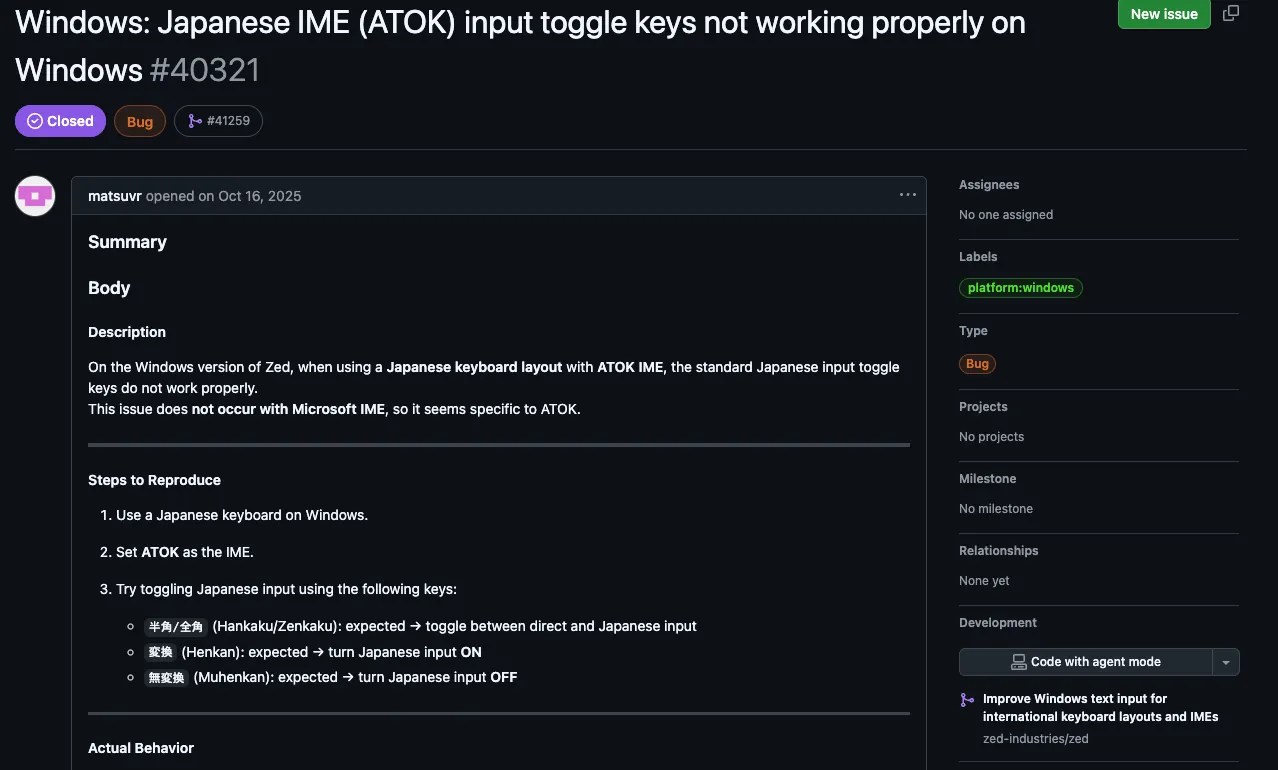
This is not a “once a week” annoyance. On days when I am writing Japanese comments, Markdown, or prompts to Claude Code, it happens multiple times per hour. Here are the three workarounds I have actually landed on:
- Toggle IME off before typing English. This is the most reliable fix — and also the most mentally taxing one, because I switch between Japanese and English constantly during a Claude Code session. Every manual toggle is a small interruption.
- Rebind the offending Zed keymap entries. This is the proper fix, but it requires identifying exactly which keybinding is colliding with the ATOK composition sequence, and I have deprioritized the investigation. If you hit the same issue, start by auditing bindings that involve
Shift + Ior composite modifier combinations in yourkeymap.json. - Accept it and move on. Unglamorous but honest — for my workflow, Zed’s speed and Claude Code integration outweigh this friction. I decided the cost was worth it. Your mileage may vary.
This class of problem was tracked as #28174 — “Keymap takes precedence over input methods (CJK IME)”, where other Japanese IME users documented the exact same misfire with screenshots. That specific issue was closed as “completed” in March 2026 after a fix for the Vim jj keybinding intercepting IME keystrokes (PR #52192) landed. But closing #28174 did not eliminate the whole class of keymap-vs-IME collisions: I still hit misfires with ATOK, and a fresh report — #59882 (Chinese IME intermittently failing across the editor) — was opened in June 2026. It is a fundamental ordering issue between Zed’s keybinding dispatcher and the OS-level IME composition layer, and it is being chipped away at case by case rather than solved in one stroke.
Windows — Rapidly Improving
Windows IME support has seen major progress in recent versions. Key fixes include:
- v0.228.0 — Fixed a critical bug where IME composition in Vim mode would swallow keystrokes
- MS-IME toggle — The half-width/full-width toggle (Hankaku/Zenkaku key) now works correctly for switching between English and Japanese input
- TSF (Text Services Framework) integration is improving steadily
Windows is catching up to macOS, and for users on recent Zed versions, standard Microsoft IME and Google Japanese Input are largely functional.
Linux — Significant Problems
⚠️ Linux IME Support Is Not Production-Ready
- Google Japanese Input on X11 — Characters vanish after the composition is committed. Tracked as issue #15409, which was closed as “not planned” in April 2026 — so an official fix is unlikely in the near term, and this configuration is best avoided for now.
- Fcitx5 — Partial support. Inline composition may not display correctly, and candidate window positioning is unreliable.
- IBus — Partial support. Some keybinding conflicts and composition interruptions reported.
- Wayland — IME support under Wayland is even less mature than X11 in many cases.
If you rely on CJK input on Linux, Zed is not recommended as your primary editor at this time. Use VS Code or Cursor instead.
CJK Font Rendering Issues
Even when IME input works, CJK users may encounter font rendering bugs in Zed’s custom GPU renderer:
| Issue | Description |
|---|---|
| Tofu Characters (□) | Some CJK glyphs render as blank rectangles when the configured font lacks coverage and fallback fails. |
| Panic Crash on Certain Glyphs | Rare but reported: opening files with specific Unicode characters can crash the renderer entirely. |
| Italic rendering (#46907) | Narrow case: italic rendering breaks when LXGW WenKai is used in Markdown preview. Not a general italic-CJK problem, but a concrete example of font-specific fragility. |
| Terminal display (#47211) | Tracked as “Terminal display problem”. Zed’s integrated terminal can mishandle wide characters, causing alignment issues in CLI output that includes CJK text. |
Recommended Font Settings
To minimize rendering issues, configure Zed with fonts that have strong CJK coverage. Add this to your settings.json:
{
  "buffer_font_family": "PlemolJP Console NF",
  "buffer_font_fallbacks": [
    "Noto Sans CJK JP",
    "Noto Sans CJK SC",
    "Noto Sans CJK KR"
  ],
  "buffer_font_size": 14,
  "ui_font_family": "PlemolJP Console NF"
}
PlemolJP Console NF combines a Latin programming font with full Japanese coverage. Add Noto Sans CJK variants as fallbacks for Chinese and Korean glyphs.
Vim Mode + IME — No Auto-Switching
This is a major pain point for CJK developers who use Vim keybindings. In Neovim, plugins like im-select automatically switch your IME to English when you leave Insert mode — so you can use hjkl navigation and ex commands without manually toggling your input method.
Zed does not have this feature. There is no im-select equivalent, no configuration option, and no extension API to hook into mode changes. This means:
- You press
Escto exit Insert mode, but your IME is still in Japanese/Chinese/Korean mode - You try to type
ddto delete a line — but it inputs CJK characters instead - You must manually press the IME toggle key every single time you switch Vim modes
For developers who switch between Insert and Normal mode dozens of times per minute, this constant manual toggling creates severe friction and breaks flow. Until Zed adds IME auto-switching hooks, CJK Vim users may want to stay with Neovim or VS Code with the Vim extension (which supports im-select via settings).
How Zed Compares for Non-English Development [July 2026]
| Feature | Zed | VS Code | Cursor | Devin Desktop (formerly Windsurf) |
|---|---|---|---|---|
| UI Locale | ❌ English only | ✅ 10+ languages | ✅ Inherits VS Code | ✅ Inherits VS Code |
| IME (macOS) | ✅ Stable | ✅ Stable | ✅ Stable | ✅ Stable |
| IME (Windows) | ⚠️ Improving | ✅ Stable | ✅ Stable | ✅ Stable |
| IME (Linux) | ❌ Major issues | ✅ Stable | ✅ Stable | ✅ Stable |
| Vim + IME Auto-Switch | ❌ Not supported | ✅ im-select | ✅ im-select | ✅ im-select |
| CJK Font Rendering | ⚠️ Some bugs | ✅ Chromium engine | ✅ Chromium engine | ✅ Chromium engine |
| Spell Check (Non-English) | ❌ English only | ✅ Extensions | ✅ Extensions | ✅ Extensions |
The comparison makes it clear: Zed’s native rendering engine gives it a performance edge, but that same architectural decision creates challenges for internationalization that Electron-based editors solved years ago by inheriting Chromium’s mature text handling.
For a deeper dive into how Windsurf and Zed stack up, see our Windsurf vs Zed Comparison. For a broader look at all major AI-first editors, see my 2026 AI code editor comparison.
Let me be direct: on the specific axis of Japanese (and other CJK) input, Zed clearly loses to every other editor in this comparison. I would not pretend otherwise. The interesting question is whether that loss is disqualifying — and for my workflow, it isn’t. Here is why.
Why I still use Zed daily — measured data from my machine
After spending this much time on Zed’s weaknesses, I owe you the other half of the picture. Here is why I haven’t switched back to Cursor or VS Code, with numbers from my actual machine rather than marketing benchmarks.
Reason 1 — Startup and memory footprint (10× lighter than VS Code)
I routinely keep around 10 projects open at once. From a cold start via Cmd + Space, Zed is ready to edit in 1–2 seconds. On the same machine (macOS 26.4), VS Code or Cursor takes tens of seconds to a full minute to reach the same state. That’s a dramatic gap in wall-clock terms for my workflow — though I want to be clear that these are anecdotal numbers from my own setup, not a controlled benchmark, and yours will vary with project count and extension load.
Memory tells the same story. With the same 10-project setup containing Japanese content, Zed typically stays below 2 GB of RAM. VS Code and Cursor routinely climb to 4–6 GB with the same projects loaded. My MacBook’s fans stay quieter, my battery lasts longer, and I can keep more Chrome tabs open for research. Those small wins compound across an entire working day.
Reason 2 — Claude Code + Zed is the best CLI-agent combo I’ve tried
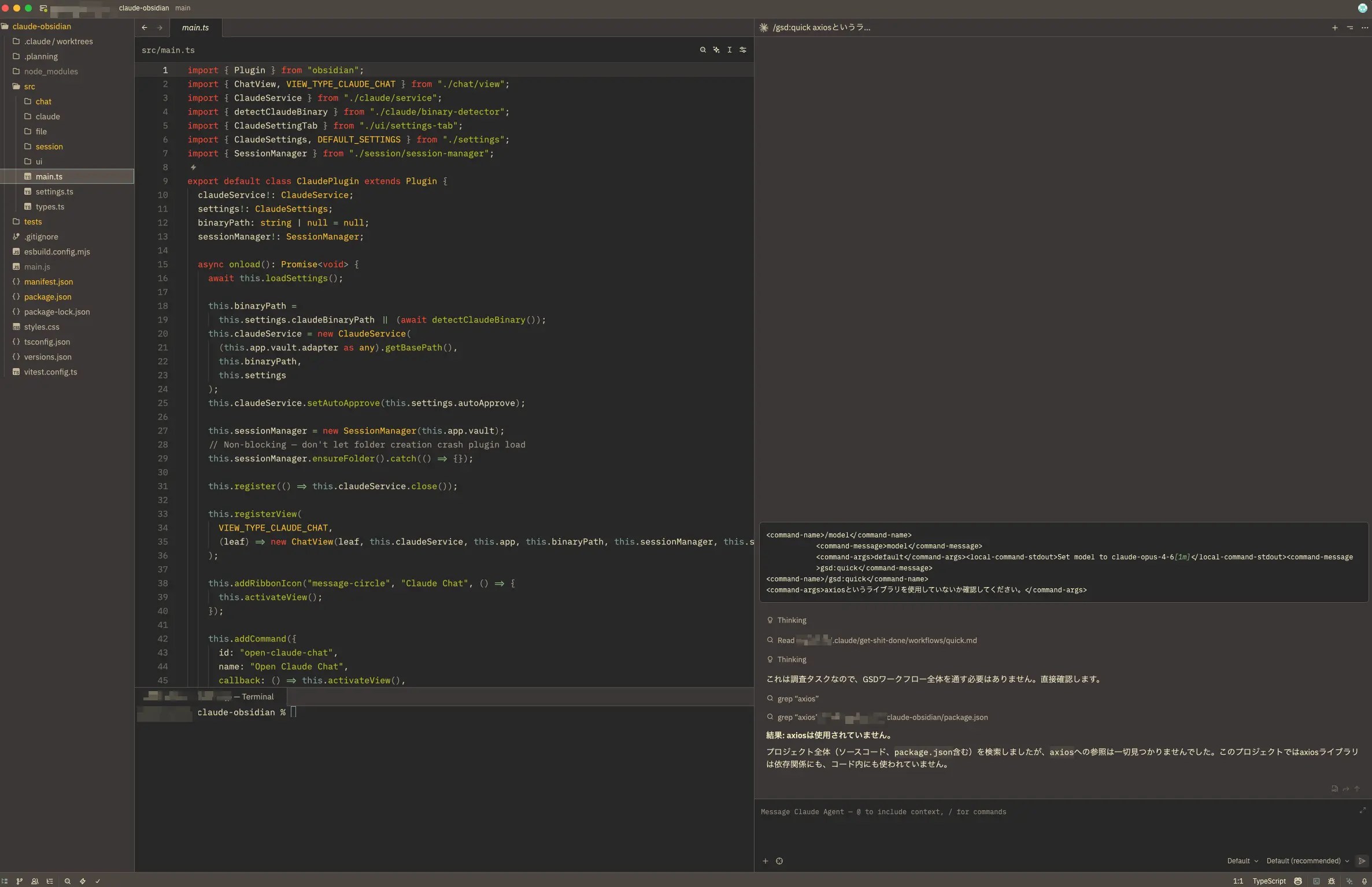
I consolidated my AI workflow around Claude Code — and I deliberately do not use Zed’s built-in agent panel. Instead, I run Claude Code inside Zed’s integrated terminal (the screenshot above is literally my daily setup). The editor stays “dumb”: its job is to render files fast and reflect changes instantly.
This pattern works beautifully with Zed because the editor reacts to filesystem changes almost instantaneously. When Claude Code rewrites a file, Zed shows the new content with no perceptible lag. On VS Code I often see a noticeable delay in the same scenario — sometimes a full second or two while the editor re-indexes. For a “light editor + external CLI agent” workflow, Zed genuinely outperforms the VS Code family, and that is a hill I will happily defend.
One honest caveat for the CJK readers who will ask: earlier in this article I recommended falling back to an external terminal (Terminal.app, iTerm2) when you need serious Japanese input inside a terminal. That advice still holds. In practice, most of my Claude Code prompts are short and English-leaning, so Zed’s integrated terminal is fine. When I need to write longer Japanese prompts or paste multi-line Japanese, I simply switch to iTerm2 for that task and come back to Zed. Treat the two approaches as complementary, not competing.
Reason 3 — Project-wide search is fast, even with Japanese content
Full-project search (Cmd + Shift + F) in Zed is something I did not expect to care about until I measured it. Even on repositories with heavy Japanese documentation and CJK-laden comments, search results appear effectively instantly, and hit accuracy has not been a problem for me. For anyone who navigates large codebases via search, this is a quality-of-life improvement you’ll notice within a day.
💭 My honest bottom line
If the IME composition layer were fixed — specifically, the keymap-vs-IME ordering problem in issue #28174 — I would recommend Zed to Japanese developers without hesitation. That’s how close it is for me. Today, I still recommend it, but with the explicit caveat that you need the tolerance (or the willingness to rebind keys) to live with the composition misfires.
Who should (and shouldn’t) use Zed in a CJK environment
Based on everything above, here is how I’d triage a fellow CJK developer considering Zed as a daily driver.
✅ Zed fits you if…
- You run an external CLI agent (Claude Code, Codex, Gemini CLI) as your primary AI workflow
- You are on macOS and prioritize startup time and RAM footprint
- You write code primarily in English and switch to CJK mostly for comments, commit messages, or Markdown
- You are comfortable investigating and rebinding
keymap.jsonentries to resolve IME conflicts - You do not use Vim mode, or you stay in Insert mode for long stretches at a time
❌ Skip Zed (for now) if…
- You depend on VS Code extensions with no equivalent in Zed’s ecosystem
- You need a localized UI in your native language — Zed is English-only
- You work on Linux and type Japanese/Chinese/Korean daily (issue #15409 was closed as “not planned” — no fix is coming soon)
- You rely on Vim mode with im-select-style automatic IME switching
- Your primary output is long-form Japanese writing (blogs, docs) rather than code
A one-week evaluation checklist
If you decide to try Zed for a week, the two things I would focus on are:
- Compatibility with your AI agent. Launch your CLI agent (Claude Code, Codex, Gemini CLI) from Zed’s integrated terminal, run a realistic task, and watch how quickly Zed reflects filesystem edits. This is where Zed genuinely shines — or doesn’t, if your agent has quirks.
- Keybinding flexibility. Open
settings.jsonandkeymap.json, then deliberately try to reproduce and rebind whatever IME conflict you hit. If you can neutralize the collision within an hour of tinkering, Zed is viable. If you can’t, you’ll know quickly that this is not your editor yet.
FAQ
The Bottom Line
Zed’s Language Support in Three Words: Code Yes, UI No
Programming language support is excellent at 70+ languages. The UI is English-only with no localization roadmap. IME input varies dramatically by OS — macOS users can work productively, Windows is catching up, and Linux users should wait.
After several months of Zed as my daily driver with ATOK on macOS 26.4, the IME issues are real but not disqualifying for my workflow — Claude Code in the terminal plus Zed in the editor is still the fastest “light editor + CLI agent” setup I’ve used. If you are a macOS developer willing to spend an hour rebinding keymaps and you live on an external CLI agent, give Zed a real week. If you need bulletproof CJK input on Linux, a localized UI, or Vim + im-select behavior, VS Code or Cursor are still the safer choice right now.
🆘 Where I go when I get stuck
- Zed GitHub Issues — my first stop for IME and i18n questions. Always search to see if somebody already filed your exact bug.
- Zed official Discord — where the developers and power users hang out. Great for workaround sharing and repro confirmation.
- If you get stuck during setup, my Zed install guide and Zed features overview are good companion reads.
👉 AI Code Editor Comparison — Cursor, Zed, Windsurf & More
![Devin Desktop (formerly Windsurf) vs Zed: AI Features, Performance & Pricing [2026]](https://i0.wp.com/devgent.org/wp-content/uploads/2026/03/windsurf-vs-zed-eyecatch.webp?fit=300%2C167&ssl=1)


Author
krona23
Over 20 years in the IT industry, serving as Division Head and CTO at multiple companies running large-scale web services in Japan. Experienced across Windows, iOS, Android, and web development. Currently focused on AI-native transformation. At DevGENT, sharing practical guides on AI code editors, automation tools, and LLMs in three languages.
📚 Related Articles


🔥 Most Popular
- Claude Desktop Won't Install? Windows & Mac Fixes That Worked (2026)
- Obsidian Visualization Tools: Graph, Canvas, Excalidraw (2026)
- Claude Code CLI vs Web vs Desktop: A Daily User's Guide (2026)
- Can an 8GB GPU Run a 35B MoE? Check Host RAM, Cache, and Speed
- Puppetmaster: How to Route Coding Agents by Cost




Leave a Reply