
On the November 1, 2026 pricing page, Dot is listed as a Pro feature. Individual Pro is $100, $200, or $500 a month. The eligibility section below is the help-center record from the same day.
📑Table of Contents
OpenAI Dots is not a tool that can only chat. Dots is an assistant that keeps working for 24 hours after you close the screen. The model Dots uses is GPT-6 Astra.
It is risky to hand everything to Dots just because it looks useful. The first dot has no extra charge. If you widen permission to apps or to your own computer, Dots may not only look. Dots may also send messages and make changes.
The full description is in Introducing dots and the safety post. Who can use Dots is spelled out in the Help page Getting started with your dot. This article checked that page on November 1, 2026.

OpenAI Dots keeps working after you close the chat
ChatGPT finishes when it answers inside that chat. Dots is one assistant. That assistant works on several jobs at the same time. Dots messages you with progress. Dots also messages you when a decision needs you.
A dot has its own computer and browser in the cloud. The dot connects to more than 4,000 apps through the connectors OpenAI provides. You can talk to the dot in the ChatGPT app, in a browser, on a phone, in Slack, and in Teams. You can also call the dot. The earlier conversation stays, no matter which screen you use.
You can open the dot’s computer screen at any time. Connecting your own computer to the dot is a separate permission. If you do not connect your computer, the dot’s files and your files stay separate.

The official examples are investigating a Slack bug, turning a design into a working app, and drafting an invoice that the dot sends only after you say OK. You do not have to give every step. Dots returns the result. Before a send or a payment, Dots asks you to confirm.
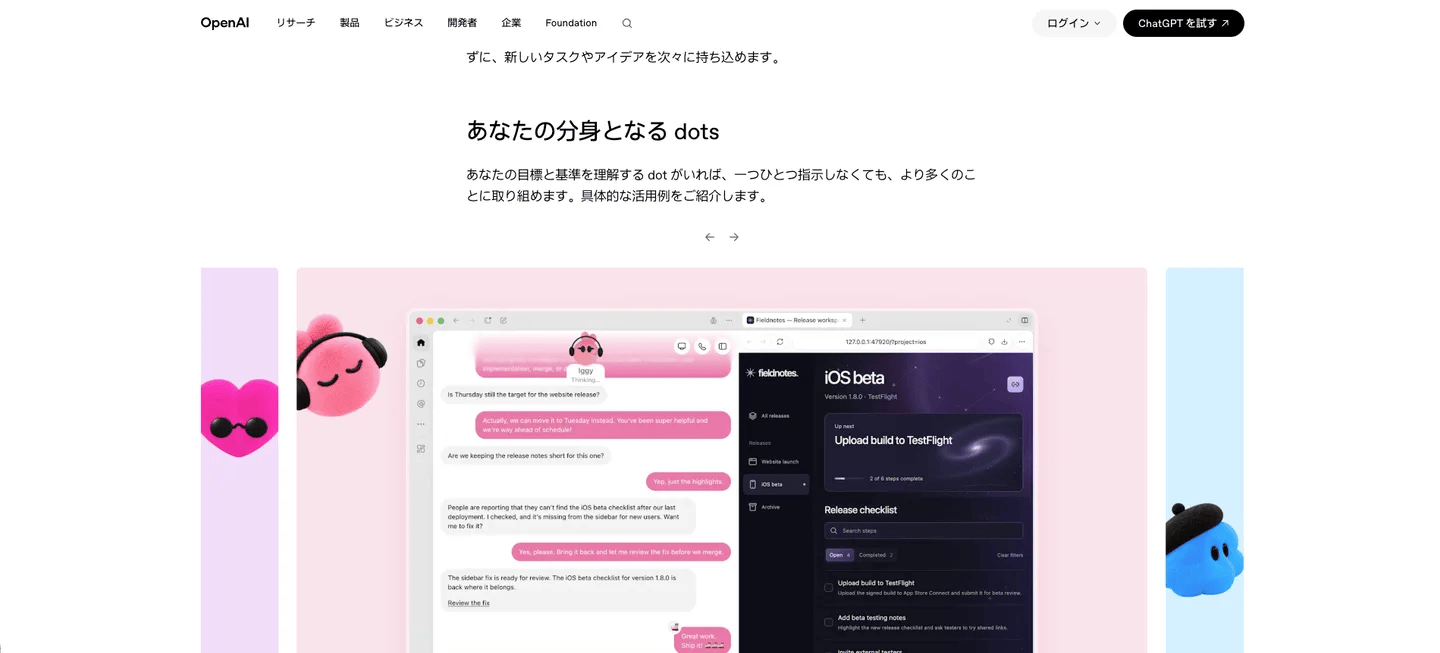
How OpenAI Dots differs from ChatGPT and Codex
ChatGPT, Codex, and Dots all look like chat. The difference is two things. One is whether that action uses your ChatGPT usage. The other is whether the work continues after you close the screen.
Talking with your dot does not use ChatGPT usage. If you ask the dot to start a Codex or ChatGPT Work job, that job uses usage as usual. A conversation outside the usage limit does not make the dot’s code work free.
The older split between chat and GitHub work still applies to Dots. See how to separate ChatGPT and Codex. The difference is that the same dot keeps both. Even when you step away, the dot thinks about the next step.
TechCrunch wrote on launch day that Codex could already do much of this. What is new in Dots is the package: one conversation, a dedicated computer, and proposals from the dot. Long jobs themselves overlap with ChatGPT Work. The difference is that Dots keeps those jobs going after you close the screen. Read that next to the ChatGPT Work explainer.
The Verge says you can create only one dot for now. OpenAI also says you start with one, and later may add more dots, more speed, and more work per month. Dots does not yet support splitting roles across a team. Specialist dots are separate dots with different roles inside a company. That is an enterprise pilot only. It is not the one dot a person creates.
Who can use OpenAI Dots in November 2026
The Help Center page checked on November 1, 2026, splits access by plan. OpenAI does not turn Dots on for every eligible account at once. Even if you meet the conditions, Dots may take several days to appear on your account.
| Plan | Who can enter now | Watch this |
|---|---|---|
| Pro | Age 18 or older. EEA, Switzerland, and the UK are excluded | The first dot has no extra charge. Text messages are a US Pro trial only. Pro in Japan cannot use them |
| Business Premium | A supported ChatGPT region, plus workspace conditions | The text-message trial is excluded |
| Enterprise / Edu / Healthcare | Off until an admin turns the beta on | Encryption or data-residency rules can exclude that workspace |
On the first dot, talking, asking it to think, and asking it to look into something you care about has no extra charge. Heavier work has a limit. For the first month after you start, that limit is wider than usual. OpenAI has not published the price of a second dot, or the price of more speed. Those numbers are not public. A first dot with no extra charge is not unlimited.
Source: Getting started with your dot (checked November 1, 2026)
On a personal plan, you choose whether OpenAI may use your chats to improve the model. Business, Enterprise, and Edu do not use chats for training by default. The dot can read connected apps first and then propose what to do next. That feature is called proactive research. OpenAI does not use that research, or the notes the dot keeps for itself, directly to train the model. If that material becomes part of a chat or a task, and you have training use turned on for a personal plan, OpenAI may use it.
How to create the first dot
You can create a dot in the ChatGPT app on iPhone or Android, in the desktop app, or in a desktop browser. You cannot create a dot in a phone browser. The desktop app also exists for Windows. You connect Slack and text messages on a computer.
- Open chatgpt.com/dots in the account and workspace you plan to use. If the Dots screen does not appear, check your plan and region first.
- Give the dot a name. The name includes the letters “dot” from the start. In Slack, your name is prefixed, as in
@alex-helper. If you rename the dot, that prefixed name stays. Slack formats the display. - Connect only the apps you want the dot to read. If you disconnect an app later, what the dot already read remains.
- Keep the first job to a calendar check, research notes, or a draft. Do not include sending, purchasing, or permission changes in that job. You can attach a file from the
+in the conversation.
For now, the dot does not call you. You place the call from the phone button in the conversation. Text messages are a US Pro trial only. Business and Enterprise cannot use text messages. Where text messages work, another company sends them, not OpenAI. Do not put secrets in a text message. To stop texts, reply STOP.
What to stop before you leave Dots running
Even though Dots can run for 24 hours, it can do two kinds of things. One is reading apps and proposing a next step. The other is actually changing the outside world.
The feature that reads connected apps first and proposes a next step is called proactive research. During that research, the dot only reads. The dot cannot send messages, change apps, or operate a browser or computer in that research task. When the dot later carries out a proposal, your Custom Rules and OpenAI’s automatic review apply. Custom Rules are explained below.
You can limit outward actions with Custom Rules. Custom Rules are rules you write yourself. The Help Center lists four behaviors.
- The dot acts without asking
- The dot acts only on what you already approved
- The dot asks you before it acts
- The dot hands that action back to you
“Already approved” means only the action written in that instruction. Asking for a draft is not permission to send. The dot can help you write the rule text, but changing a rule needs your approval. Confirmations OpenAI requires, such as a check before sending, cannot be removed by your rules.
These first rules are enough.
- Mail, Slack, and invoices stop at a draft. When the dot sends, it asks you every time
- Purchases, permission changes, and password changes come back to you
- The dot does not fetch the contents of an app you did not connect, by another route
Your own PC starts off. When you connect it, confirm Allow access twice in the app on that PC. After you turn it on, a job you request from Slack or another screen can also let the dot read files on that PC. The off switch is Revoke access. An app that is open but offline is not a disconnect. Connecting a computer to Codex, or turning on Work Sync, does not let the dot use your PC.
OpenAI says a supported secure sign-in does not put the password into the conversation. That statement is only about that sign-in screen. A password you paste into a chat or a document is read by the dot as ordinary text. The dot can prepare a password change or a transfer between financial accounts. You perform the change and the transfer yourself.
Disconnecting an app does not erase what the dot already knows. Reset deletes the conversations, saved memory, and scheduled work together. Reset cannot be undone, so save the files you want first.
Check this before you leave it running
Before you leave Dots running, check the list below. If any line is unknown, let the dot only read and draft.
- Your plan and region are covered by the Help Center page
- The workspace matches your training setting and data-residency rules
- The apps you connected are only the ones you want the dot to read
- Sends, purchases, and permission changes either ask you first or come back to you
- Your PC is connected only if you need that one machine. Otherwise it stays off
- The first job does not include a send or a payment
- You know where finished files live before you use Reset
- You are not treating an unpublished limit as unlimited
If any line is unknown, leave the dot in a state where you can pause it. Ask for one draft that does not send, and stop there. Pause and resume are in the profile menu.
FAQ
Can I use Dots on the free plan?
No. The free plan cannot use Dots. The first dot with no extra charge is for eligible Pro and Business Premium accounts. Enterprise, Edu, and Healthcare stay off until an admin turns the beta on. That beta starts off.
Do conversations count against ChatGPT usage?
The conversation with the dot does not. If the dot starts or manages a Codex or ChatGPT Work job, that job uses ChatGPT usage as usual.
Will the dot call or text me?
For now, the dot does not call you. Text messages are a US Pro trial only. Pro in Japan, and Business, cannot use them. This condition is still moving, so check whether the text-message connect button is there.
Can I create an email address for the dot?
Not now. You cannot create an email address for the dot. What you can connect is your own email account.
If I already have Codex, do I need Dots?
For writing code only, Codex or ChatGPT Work can be enough. Dots is for when you want one assistant to keep researching, drafting, and checking your calendar, and to return only the points you should review. Code the dot runs still counts against ChatGPT usage. It does not sit outside that usage.
Author’s note
This is the author’s view. Companies are shipping products with the same kind of function. The author feels that anyone can now keep an AI secretary in daily life. How useful it is depends on how organized the information you give the AI is, and which tools you let the AI use. The author wants to use it conveniently while staying careful about security.
What to do next
Check your plan and region, and connect one app you want the dot to read. Save a rule that makes the dot ask you before every send, then give it one job that cannot send. Look at the draft that comes back, and decide from that whether to leave Dots running. The price of a second dot can wait until OpenAI publishes a number.


Author
krona23
Over 20 years in the IT industry, serving as Division Head and CTO at multiple companies running large-scale web services in Japan. Experienced across Windows, iOS, Android, and web development. Currently focused on AI-native transformation. At DevGENT, sharing practical guides on AI code editors, automation tools, and LLMs in three languages.


🔥 Most Popular
- Claude Desktop Won't Install? Windows & Mac Fixes That Worked (2026)
- Zed Language Support & IME Issues: CJK Input, i18n Status — Complete Guide (2026)
- Claude Code Skill: Hands-On SKILL.md, Auto-Invoke & Teams (2026)
- Claude Code CLI vs Web vs Desktop: A Daily User's Guide (2026)
- Install OpenClaw: Node 24 or 26 (November 2026)



Leave a Reply