
Did you know Claude Code has over 50 slash commands?
📑Table of Contents
- Command Cheat Sheet — Navigate by Priority
- 🔴 Essential Commands — The 5 You’ll Use Every Day
- 🟡 Useful Commands — Boost Your Productivity
- 🟢 Situational Commands — For Specific Workflows
- ⚪ Good to Know — Troubleshooting & Customization
- Keyboard Shortcuts & Input Prefixes
- Hidden Commands & Debug Features
- Practical Workflows — Combining Commands
- Custom Commands & Skills
- Bundled Skills — Pre-installed Slash Command Skills
- FAQ — Claude Code Commands
- Removed / Changed Commands (Compatibility Notes)
- Wrapping Up — Fewer Commands Than You Think. When in Doubt, Just Ask AI.
Most users only ever touch /help and /compact, but there’s a whole arsenal of commands for context management, session control, debugging, and CI/CD integration that can seriously level up your productivity.
There are a lot of commands, but the ones you actually need to memorize are surprisingly few. I’ve compiled the most important ones here, based on how I actually use Claude Code day to day. This article organizes every Claude Code command by category and shows you how to use them in practice.
✅ Verified on Claude Code v2.1.89 (April 2026, author’s environment)
💡 Argument notation: <arg> indicates a required argument, [arg] an optional one. Also note that command visibility depends on your platform (/desktop is macOS/Windows only), plan (/upgrade and /privacy-settings require Pro/Max), and environment variables, so your /help list may differ from this article.
What you’ll learn
- All commands ranked by priority — Essential / Useful / Situational / Good to know
- Keyboard shortcuts and input prefixes (
@,#,!) - Hidden commands & debug features
- Practical workflows (daily dev, experimentation, next-day resumption)
- Custom Commands / Skills overview (with links to a dedicated deep-dive)
Command Cheat Sheet — Navigate by Priority
| Priority | One-liner | Command | Typical Frequency |
|---|---|---|---|
| 🔴 Essential | Context compression. Auto-compact handles most cases; manual only when needed | /compact |
As needed (auto-compact is primary) |
| 🔴 Essential | Reset conversation. Use when switching tasks | /clear |
Daily |
| 🔴 Essential | Switch models. Control cost & quality | /model |
Daily |
| 🔴 Essential | Auto-approve. No more permission fatigue | Shift+Tab |
Every session |
| 🔴 Essential | File references. Skip typing full paths | @file |
Every session |
| 🟡 Useful | Branch conversations for safe experiments | /fork |
A few times/week |
| 🟡 Useful | Roll back conversation + code | /rewind |
A few times/week |
| 🟡 Useful | Resume a previous session | /resume |
A few times/week |
| 🟡 Useful | Plan mode to prevent rework | /plan |
For complex tasks |
| 🟡 Useful | Interactive diff review | /diff |
Before committing |
| 🟡 Useful | Adjust response depth | /effort |
As needed |
| 🟡 Useful | Check token usage & plan balance | /cost, /usage |
When watching costs |
| 🟡 Useful | Inject a side instruction without interrupting | /btw |
When you notice something mid-task |
| 🟡 Useful | Systematic bug investigation | /debug |
When debugging |
| 🟢 Situational | Large-scale parallel changes | /batch |
During refactoring |
| 🟢 Situational | Auto-fix PRs | /autofix-pr |
When handling review feedback |
| 🟢 Situational | Manage permission rules | /permissions |
Initial setup |
| 🟢 Situational | MCP server management | /mcp |
When using MCP |
| 🟢 Situational | Hand off to another device | /desktop, /mobile |
When switching environments |
| ⚪ Good to know | Diagnostic tool | /doctor |
When troubleshooting |
| ⚪ Good to know | Visualize token usage | /context |
When curious |
| ⚪ Good to know | Manage privacy settings | /privacy-settings |
Initial setup |
| ⚪ Good to know | Hidden command. Detailed token breakdown | !tokens |
When debugging |
🔴 Essential Commands — The 5 You’ll Use Every Day
If you use Claude Code, commit these 5 to muscle memory. They alone will dramatically improve your daily development workflow.
① /compact [instructions] — Context Compression
Summarizes conversation history to reduce token consumption. In practice, you can leave this to auto-compact most of the time — reach for the manual command only when you need control.
- Auto-compact triggers automatically when context hits 95% capacity
- Pass
instructionsto control what gets preserved
Example:/compact keep info about tests - If you’re worried about auto-compact firing mid-task, compact manually at a clean break point instead
/compact manually. It used to trigger more often, but as Claude Code’s context window has grown, the auto-compact threshold fires much less frequently for me. One caveat: when auto-compact runs mid-task, I’ve occasionally seen the model drift from the original instructions afterwards. For critical tasks I now keep an eye on /context and compact manually at a clean break point, rather than letting it happen in the middle of an edit.
② /clear — Reset the Conversation
Wipes the conversation history and starts a fresh session.
- Aliases:
/reset,/new - When to use which:
Want to keep some context →/compact
Clean slate →/clear
/clear at nearly every task boundary. Starting each task with a clean slate keeps the previous task’s context from leaking into the next decision, which cuts down on subtle misalignments between what I asked for and what the model delivers. When I want to undo a bad instruction rather than reset entirely, I reach for /rewind instead — not often, but it’s saved me a few times.
③ /model [model] — Switch Models on the Fly
Dynamically switch models based on task complexity.
- Specify
opus,sonnet,haiku, etc. - Simple tasks → Haiku (fast & cheap)
- Complex design → Opus (highest quality)
/model defaultreverts to the default model
When I’m running low on my monthly subscription quota, my fallback ladder is: (1) switch to Sonnet since it has its own quota bucket, (2) pay for on-demand overage, or (3) route the task to Codex CLI, Kiro CLI, or Cursor CLI to preserve my Claude Code budget. Having a “which model / which tool for which task” routing habit removes a lot of end-of-month stress.
④ Shift+Tab — Auto-Approve Mode
Automatically approves permission prompts (“Edit this file?”).
- No more mashing “yes” on every action
- Use for tasks you trust
/plan or change the setting via /config.
⑤ @file Reference — Quickly Point to Files
Just type @src/index.ts fix this endpoint to add a file to the context instantly.
Tabcompletion works for file paths- Directories work too (
@src/components/) - No more copy-pasting file paths manually
🟡 Useful Commands — Boost Your Productivity
Once you’ve mastered the essentials, add these to your toolkit. They’re focused on experimentation, rollback, and planning — commands that prevent costly rework.
/fork [name] — Branch a Conversation for Safe Experiments
- Creates a copy of the current conversation for experimentation
- If things go wrong, your original conversation is untouched
- Name your forks for easy tracking (e.g.,
/fork refactor-attempt)
/rewind — Roll Back Conversation and Code
- Rolls back to a specific point in the conversation
- Code changes are reverted too (checkpoint-based)
- Alias:
/checkpoint - vs. /fork: Want to try something →
/fork; want to undo →/rewind
/resume [session] — Pick Up Where You Left Off
- Restores a previous session so you can continue working
- Specify a session ID or pick from a list
- Alias:
/continue claude --resumealso works at startup
/plan — Think Before You Code
- Switches to a planning mode — design before implementation
- Highly recommended before tackling complex tasks to reduce rework
/plan first — no exceptions. Skipping it and diving straight in has cost me hours of rework more times than I can count: the model takes an unintended path, I end up reverting, and the total work balloons. Even for tasks I initially judge as “small,” the moment the scope starts spreading across multiple files, I stop and switch to /plan. It’s almost always faster end to end. More planning-mode workflows in my 15 Claude Code efficiency tips guide.
/diff — Review Changes Interactively
- Shows uncommitted changes in an interactive diff viewer
- Accept or reject changes file by file
/effort [level] — Tune Response Depth
- Choose from
low/medium/high/max/auto - Quick tasks →
lowfor speed; complex tasks →maxfor thoroughness - Great for cost optimization (
lowconsumes fewer tokens)
/fast [on|off] — Toggle Fast Mode
- Prioritizes faster responses
- Uses the same model (Opus 4.6) with optimized output speed
/cost, /usage — Check Token Consumption & Plan Balance
/cost: Shows token usage and cost for the current session (essential for API key users)/usage: Shows remaining subscription quota and rate limit status (handy for Pro/Max subscribers)
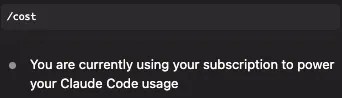
/cost output from my environmentNot sure which plan gives you the best quota for your workflow? Compare all tiers in our Claude Pricing Plans guide.
/init — Bootstrap CLAUDE.md
- Interactively generates a CLAUDE.md file for your project
- Analyzes your project structure and suggests relevant rules and conventions
- Run this first when starting Claude Code on a new project
/insights — Visualize Your Usage Patterns [Hidden Gem]
/insights analyzes your Claude Code usage data and saves it as a browsable HTML report. It’s easy to miss in the command list, but it’s one of the commands I most wish I’d found sooner.
- Report is written to
~/.claude/usage-data/report.html— just open it in a browser - Visualizes which Skills and tools you used, and what they produced, over time
- Shows session type distribution so you can check whether your parallel-processing workflow is actually firing
- Run it monthly as a lightweight retro — wasteful patterns and Skill-worthy repetitions jump out fast
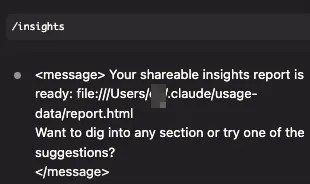
/insights (my environment)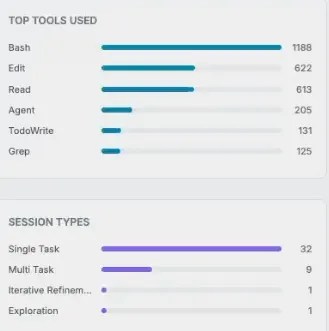
~/.claude/usage-data/report.html/insights gave me a classified view of session types, which let me verify that my parallel-processing workflow was actually running the way I thought it was. It also turned parts of my workflow I’d been managing “by feel” into concrete data — which in turn became the trigger for promoting a few repeated prompts into proper custom Skills.
Newer Cloud & Web Commands
These are relatively new commands added as Claude Code on the Web and Cloud features expanded. Many require a claude.ai subscription, so availability depends on your plan.
/autofix-pr [prompt] |
Claude Code on the Web watches your current branch’s PR and pushes automatic fixes in response to CI failures or review comments. Requires the gh CLI and web access |
/schedule [desc] |
Create, update, and run Cloud scheduled tasks conversationally — cron-style jobs described in natural language |
/teleport (/tp) |
Pull a Claude Code on the Web session (branch + conversation) into your terminal. Requires a claude.ai subscription |
/ultraplan <prompt> |
Run an ultraplan session to draft a plan, review it in the browser, then kick off remote execution or drop back into the terminal |
/voice |
Push-to-talk voice dictation. Requires a claude.ai account |
/powerup |
Animated, interactive lessons for discovering features — a fun onboarding command |
Source: Claude Code Docs — Built-in commands (as of April 2026)
🟢 Situational Commands — For Specific Workflows
You won’t need these every day, but they’re powerful when the right situation arises. Bookmark this section for reference.
Development & Review
| Command | Description | When to Use |
|---|---|---|
/batch <instruction> |
Parallel bulk edits across multiple files (uses worktrees) | Large-scale refactoring |
/security-review |
Scan for security vulnerabilities | Pre-release checks |
/install-github-app |
Set up GitHub Actions integration | Initial setup |
/add-dir <path> |
Add a working directory | Monorepos or multi-directory projects |
Note: the old /pr-comments command was removed in v2.1.91. Use ! gh pr view --comments directly, or /autofix-pr. See the “Removed / Changed commands” section near the end. |
||
Settings & Management
| Command | Description | When to Use |
|---|---|---|
/config (/settings) |
Open the settings panel | Changing settings |
/permissions (/allowed-tools) |
Manage permission rules | Initial setup or adding rules |
/hooks |
List hook configurations | Hook inspection & debugging |
/skills |
List available Skills | Checking available Skills |
/mcp |
Connect & manage MCP servers | MCP setup |
/memory |
Manage CLAUDE.md & auto-memory | Changing memory settings |
/sandbox |
Toggle sandbox mode | Security configuration |
/plugin |
Manage plugins (install, remove, list) | Adding plugins |
/reload-plugins |
Reload active plugins | After plugin changes |
/agents |
Manage agent settings | Custom agent configuration |
/tasks |
List & manage background tasks | Checking parallel tasks |
/extra-usage |
Configure additional usage beyond rate limits | When you hit the limit |
Connectivity & Integrations
| Command | Description | When to Use |
|---|---|---|
/desktop (/app) |
Hand off session to the Desktop app | When you want a GUI |
/mobile (/ios, /android) |
Connect to the mobile app (QR code) | Checking in on the go |
/remote-control (/rc) |
Remote control from claude.ai | Operating CLI from your browser |
/remote-env |
Configure defaults for remote environments (--remote) |
Web session configuration |
/ide |
Manage IDE integrations & status | VS Code / JetBrains integration |
/install-slack-app |
Set up Slack integration | When you need Slack notifications |
/login, /logout |
Manage authentication | Switching accounts |
Session Utilities
| Command | Description | When to Use |
|---|---|---|
/rename [name] |
Name the current session | When you plan to /resume later |
/export [filename] |
Save conversation to a text file | Documentation & sharing |
/copy |
Copy the last response to clipboard | When you need to paste it somewhere |
⚪ Good to Know — Troubleshooting & Customization
You won’t need these day-to-day, but they’re lifesavers when things go wrong or when you want to customize your environment.
Diagnostics & Help
| Command | Description |
|---|---|
/help |
List all available commands |
/doctor |
Run installation & configuration diagnostics |
/status |
Show version, model, and connection status |
/stats |
Visualize daily usage & per-model statistics |
/feedback (/bug) |
Submit feedback or bug reports |
/release-notes |
View release notes |
/context |
Visualize context usage with a color grid |
/chrome |
Set up Chrome DevTools integration |
Note: /insights has been promoted to the “🟡 Useful Commands” section above. |
|
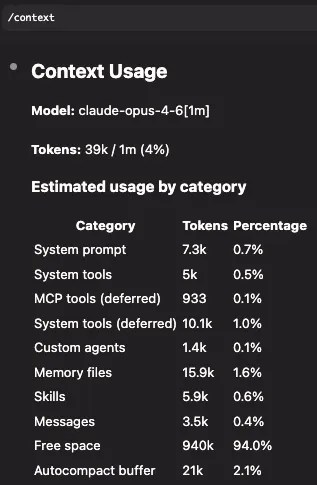
/context output — at a glance you can see which category is eating your context budgetAccount & Privacy
| Command | Description |
|---|---|
/privacy-settings |
Manage privacy settings (data collection, telemetry, etc.) |
/upgrade |
Claude Code / subscription upgrade info |
/passes |
Purchase & manage usage passes |
/stickers |
Find out how to get Claude stickers |
/exit (/quit) |
Exit Claude Code (Ctrl+C also works) |
UI Customization
| Command | Description |
|---|---|
/theme |
Change the color theme |
/color [color] |
Change the prompt bar color |
/config → Editor mode |
Enable Vim mode (the old /vim command was removed in v2.1.92; now toggled via /config) |
/keybindings |
Open the keybindings config file |
/statusline |
Customize the status line display |
/terminal-setup |
Configure terminal keybindings |
Keyboard Shortcuts & Input Prefixes
Keyboard Shortcuts
| Shortcut | Action | Priority |
|---|---|---|
Enter |
Send message | 🔴 Essential |
Shift+Tab |
Auto-approve mode (skip permission prompts) | 🔴 Essential |
Tab |
Autocomplete (file paths, command names) | 🔴 Essential |
Esc × 2 |
Interrupt generation | 🔴 Essential |
Esc × 3 |
Cancel conversation and return to input | 🟡 Useful |
↑ (Up arrow) |
Edit the previous message | 🟡 Useful |
Input Prefixes
| Prefix | Action | Example | Priority |
|---|---|---|---|
/ |
Execute a slash command | /compact |
🔴 Essential |
@ |
Reference a file or directory | @src/index.ts fix this endpoint |
🔴 Essential |
# |
Add a rule to CLAUDE.md | # always write tests |
🟡 Useful |
! |
Run a bash command directly | ! git status |
🟢 Situational |
Hidden Commands & Debug Features
There are hidden debug commands that don’t show up in the standard command list. They come in handy during troubleshooting.
🔍 Debug Commands
!help |
List all available debug commands |
!tokens |
Show a detailed token breakdown of the current context (most practical) |
!state |
Display internal state information |
!cost |
Show detailed cost information |
!memory |
Show memory usage |
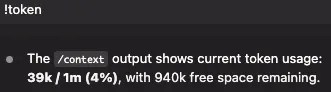
!tokens output — a detailed look at where your tokens are being spent⚠️ A Note on Hidden Commands
- These are unofficial debug commands that may change or be removed without notice
- Most are read-only and won’t affect Claude Code’s behavior
- The most practical use is running
!tokensto inspect your token breakdown during troubleshooting
Practical Workflows — Combining Commands
Knowing individual commands is great, but the real power comes from combining them. Here are 3 workflows that cover the most common scenarios.
Daily Development Flow (🔴 Essential commands only)
- Launch
claude→@src/api.ts add validation to this endpoint - Context getting bloated? →
/compact keep the validation changes - Moving to a new task →
/clearfor a clean slate - Using an expensive model for simple work? →
/model sonnetto switch down
Experimental Changes Flow (🟡 Add Useful commands)
- Before a complex refactor →
/planto review the design - Before implementing →
/fork refactor-v1to branch off - Didn’t work out? →
/rewindto roll back - Happy with the result? →
/diffto review and commit
Next-Day Resumption Flow
- Before wrapping up →
/rename feature-authto label the session - Next day →
claude --resumeor/resume feature-authto pick up where you left off
Beyond combining commands manually, you can delegate entire workflows to run autonomously. Learn how to Automate with Claude Cowork for background task execution while you focus on other work.
Custom Commands & Skills
🛠️ Customization Highlights
- Claude Code lets you create your own slash commands
- The recommended format is
.claude/skills/<name>/SKILL.md(Skills) - The legacy
.claude/commands/<name>.md(Custom Commands) format still works but is internally deprecated - Skills unlock tool restrictions, model selection, auto-invocation, sub-agent execution, and more
.claude/skills/ for repetitive work like code reviews. My rule is simple: any prompt I’m writing for the third time gets promoted to a Skill. The workflows I use to maintain this blog — /article:improve, /article:seo-check, and a handful of others — are all homegrown Skills. Readers often ask me “how do I build custom commands?” and my honest answer is: start by Skill-ifying a single prompt you use every week. That’s it.
👉 See The Complete Guide to Claude Code Skills for the full details.
Bundled Skills — Pre-installed Slash Command Skills
These Skills ship with Claude Code out of the box. You can run them as slash commands, but under the hood they’re implemented as Skills.
| Command | Description | Best For |
|---|---|---|
/btw |
Inject a side instruction without interrupting the current task | Quick fixes you notice mid-task |
/claude-api |
Reference Anthropic SDK / Claude API docs while coding | Building apps with the Claude API |
/debug |
Systematic bug investigation & fix (scientific method-based) | Hard-to-reproduce bugs |
/loop |
Repeatedly run a prompt or command at a set interval | Deploy monitoring, periodic checks |
/simplify |
Review changed code for quality, efficiency, and reusability | Post-refactoring quality check |
Bundled Skills also appear in the /help listing. To learn how Skills work and how to build your own, check out The Complete Guide to Claude Code Skills.
/loop is a Claude Code command, but Claude also offers desktop-level autonomous features — Dispatch, Computer Use, and Channels. For a comprehensive comparison, see Claude autonomous agent features explained (Dispatch, Computer Use, Loop & Channels).
FAQ — Claude Code Commands
▶How many slash commands does Claude Code have in total?
Around 55 built-in commands, 5 bundled Skills (/btw, /claude-api, /debug, /loop, /simplify), plus unlimited custom Skills you can add yourself. Run /help to see everything currently available.
▶When should I run /compact? Does it happen automatically?
Most of the time you can rely on auto-compact, which fires automatically when context reaches 95% capacity. Personally I rarely run /compact manually and keep auto-compact as my primary strategy. The one case where manual compaction pays off: when you’re in the middle of a critical task and don’t want the auto trigger to fire at an awkward moment — then compact manually at a clean break point and use instructions to specify what to keep.
▶What's the difference between /fork and /rewind?
/fork copies the current conversation into a branch. The original stays untouched — it’s a safe sandbox for experimentation. /rewind, on the other hand, rolls the current conversation back to an earlier point, including code changes. Rule of thumb: want to try something → /fork; want to undo something → /rewind.
▶Are hidden commands (!help, !tokens, etc.) safe to use?
They’re unofficial debug commands, and most are read-only. They won’t affect Claude Code’s behavior, but they could change or disappear without notice. The most practical one is !tokens — use it to inspect your token breakdown when troubleshooting context issues.
▶Can I customize keyboard shortcuts?
Some keybindings can be customized via ~/.claude/keybindings.json. Run /keybindings to open the config file.
▶A command isn't working or isn't recognized. What should I do?
Start with /doctor to run diagnostics. For custom commands / Skills, double-check your folder structure, YAML frontmatter syntax, and description field. Also make sure you’re on the latest version of Claude Code (claude --version).
▶I found a command that isn't listed in this article. What's going on?
Claude Code is updated frequently and new commands are added regularly. Run /help for the latest list anytime. You can also check /release-notes to see what’s new.
▶Should I learn /compact or /clear first?
Learn /clear first. Just getting into the habit of resetting your conversation at each task boundary cuts down on a surprising amount of confusion — the previous task’s context stops leaking into the next decision. /compact is a mid-session tool, and Claude Code now handles auto-compaction aggressively, so you don’t need to reach for it from day one. Personally I rarely run /compact manually and rely on auto-compact plus per-task /clear.
▶Do Claude Code commands work in the Web and Desktop apps?
Most slash commands are CLI-only. Claude Code on the Web and the Desktop app share some commands, but CLI-specific features like /compact and /rewind live exclusively in the CLI. For a full breakdown of which features are available where, see the Claude Code CLI vs Web vs Desktop comparison.
▶I want to build my own slash command. Skills or Custom Commands?
Use Skills. The .claude/skills/<name>/SKILL.md format is the currently recommended path. The legacy .claude/commands/<name>.md format still runs but is internally deprecated, and Skills give you tool restrictions, model selection, auto-invocation, and sub-agent execution that Custom Commands can’t. Full walkthrough in The Complete Guide to Claude Code Skills.
▶What’s the difference between /usage and /cost?
/cost shows token consumption and dollar cost for the current session (targeted at API-key users). /usage shows your subscription’s overall rate-limit consumption and remaining quota (targeted at Pro/Max users). If you’re paying on-demand via API key, use /cost; if you’re on a monthly Pro/Max subscription, /usage is the one you want.
Removed / Changed Commands (Compatibility Notes)
Claude Code ships updates frequently, and a few commands have been removed or replaced along the way. If you see a command referenced in an older article or tweet and it doesn’t work, check the table below.
| Old command | Removed in | Current replacement |
|---|---|---|
/pr-comments |
v2.1.91 | Run ! gh pr view --comments directly, or use /autofix-pr |
/vim |
v2.1.92 | Enable Vim mode from /config → Editor mode |
/review |
Deprecated | Use the official code-review plugin or a custom Skill |
Source: Claude Code Docs — Built-in commands (as of April 2026)
💡 Claude Code is updated frequently. For the latest command state, run /release-notes or /help in your terminal. This article is based on v2.1.89.
Wrapping Up — Fewer Commands Than You Think. When in Doubt, Just Ask AI.


Author
krona23
Over 20 years in the IT industry, serving as Division Head and CTO at multiple companies running large-scale web services in Japan. Experienced across Windows, iOS, Android, and web development. Currently focused on AI-native transformation. At DevGENT, sharing practical guides on AI code editors, automation tools, and LLMs in three languages.
📚 Related Articles
- ✅15 Claude Code Productivity Tips That Transform Your Daily Workflow [2026]
- ✅Claude Code Security Settings: 9 Essential Steps for Business Use [2026]
- ✅Claude Code CLI vs Web vs Desktop — Which Version Should You Use? (2026)
- ✅Is Claude Max Worth It? Why It's Essential for Serious Claude Code Users (2026)




Leave a Reply