
Anthropic’s official Help Center page dated July 7, 2026 describes Claude Dispatch as a way to message Claude from your phone and have it work on your desktop. As of August 17, 2026, the page lists Dispatch as a beta capability for Pro and Max plans.
📑Table of Contents
- What Is Claude Dispatch? — Your Phone Becomes a Remote Control for Your PC
- How to Set Up Dispatch — Step-by-Step Guide for 2026
- What Can Dispatch Actually Do? — 5 Real Use Cases (2026)
- Dispatch Not Working? Troubleshooting Guide
- Security Considerations & Caveats
- Pricing & Plan Requirements (August 2026)
- My One-Week Review — What Actually Running It Taught Me
- FAQ — Questions About Claude Dispatch (2026)
- Final Thoughts — Dispatch Is the First Step Toward an AI Assistant in Your Pocket
The practical constraint is important: Dispatch tasks run on the desktop, so your computer needs to be awake and Claude Desktop needs to be open while Claude works. My own pairing experience and the troubleshooting notes below are retained, but the setup steps now follow the current official flow.
| Item | Details |
|---|---|
| Feature overview | Send tasks to Cowork on your desktop from your phone, remotely |
| Release date | July 7, 2026 (beta) |
| Supported plans | Pro / Max beta capability listed in the official Help Center; Free is not listed |
| Supported OS | Desktop: macOS / Windows (x64) | Mobile: iOS / Android |
| Additional cost | None — included with your existing plan subscription |
| Setup time | Follow the in-app setup wizard; timing varies by account and device |
What Is Claude Dispatch? — Your Phone Becomes a Remote Control for Your PC
Claude Dispatch is a feature built into Claude Cowork that bridges your mobile device and desktop AI environment. The mental model is simple: your phone is the remote control, and your PC is the execution engine.
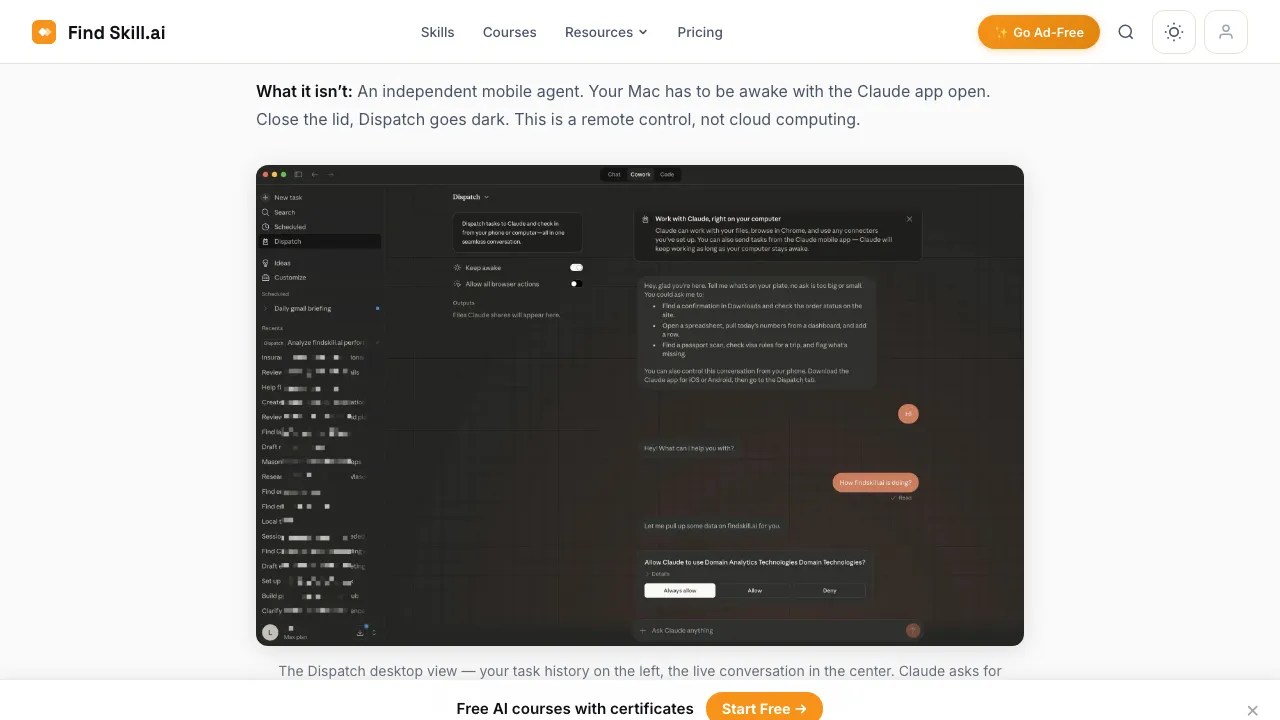
When you send a message through Dispatch, it reaches Claude Cowork on your desktop. The Dispatch task runs on that desktop and can use the local files, connectors, plugins, and apps you have configured. Your computer must be awake and Claude Desktop must be open while the task is running.
Key design decisions worth knowing:
- Desktop execution — Dispatch work runs on your computer, which must be awake with Claude Desktop open
- Not “local only” — Anthropic’s safety guidance covers cloud sessions, connected local files, connectors, and computer-use permissions
- Uses your existing Cowork setup — configured connectors, plugins, and file permissions carry over
- One persistent thread — the conversation syncs between phone and desktop
- Push notifications — the official guide says you can be notified when work finishes or needs approval
Under the Hood — Tasks Are Auto-Routed to Claude Code or Cowork
Dispatch routes development work to Claude Code and knowledge work to Cowork. The conversation remains one persistent thread across desktop and mobile, and Anthropic’s guide says the app can send a push notification when a task finishes or needs your approval.
Another spec worth knowing upfront: Dispatch currently uses one continuous persistent thread. The official documentation lists this as a known limitation — you can’t create a new thread or manage multiple parallel threads yet. Every task lands in the same running conversation, which has a nice side effect (Claude carries context forward between tasks) but is a pain if you want to separate work streams by topic.
Dispatch also plugs into Claude’s Memory system. If you’ve told Claude things like “for this project, use this folder” or “always format output this way” in the past, those preferences carry through Dispatch sessions too. You can view, edit, or delete memory entries from Claude’s settings at any time, and you stay in full control of what gets remembered.
Dispatch is just one piece of Claude’s autonomous agent ecosystem. For a comprehensive comparison of all autonomous features — including Computer Use, Loop, and Channels — see Claude Can Now Control Your PC — Dispatch, Computer Use, Loop & Channels Explained.
How to Set Up Dispatch — Step-by-Step Guide for 2026
Use the current in-app setup wizard rather than relying on older QR-pairing instructions. Here’s the official flow.
Prerequisites — Install and Update Your Apps
Before you start, make sure the apps and account are ready:
- Claude Desktop — download or update to the latest version from claude.com/download (macOS or Windows x64). Dispatch only appears in newer builds — if the menu is missing, the app version is almost certainly the culprit.
- Claude Mobile App — update to the latest version on iOS (App Store) or Android (Google Play).
- Same account on both — sign in with the same Claude account on both devices. Dispatch won’t work across different accounts.
- Plan check — confirm you’re on Max or Pro. The Dispatch menu won’t appear on a Free plan account.
Official setup flow
The current Help Center describes a setup wizard rather than a QR-code pairing procedure:
- Update Claude Desktop and open it on your computer.
- Open Cowork on desktop or mobile and select Dispatch in the left sidebar.
- Click Get started, review file access, and choose whether to keep your computer awake.
- Click Finish setup, then send your first message from the Dispatch section.
- Keep the computer awake, Claude Desktop open, and both devices connected to the internet while work is running.
⚠️ Setup checks
- Use the same Claude account on desktop and mobile, and update both apps.
- Disable sleep for long-running desktop tasks; a sleeping computer stops Dispatch work.
- Start with a small read-only task and grant only the file access you need.
Your First Test — Recommended Tasks for Verification
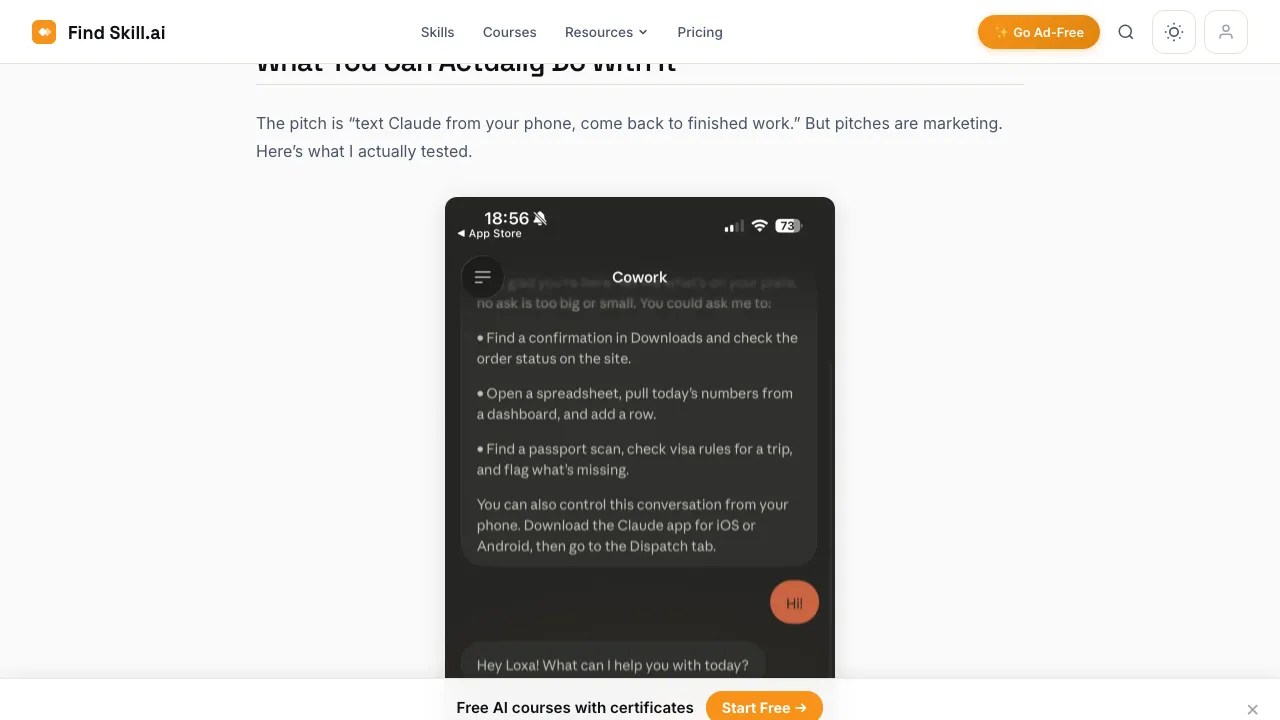
Don’t start with a complex, multi-step task. The safest way to verify Dispatch is working is to send a simple read-only information request first:
- “List all files in my Desktop folder” — tests file system access
- “What’s the latest message in the #general Slack channel?” — tests Connector access
- “Summarize the contents of [filename]” — tests file reading
Once a read-only task works, you can gradually escalate to more involved operations. Watch the desktop for permission dialogs that need your approval — while you’re away from the screen, these can block task progress.
What Can Dispatch Actually Do? — 5 Real Use Cases (2026)
Here are five practical scenarios where Dispatch genuinely earns its keep:
① File Search, Organization & Report Generation
Search and sort files in specific folders, rename batches, reorganize folder structures, or pull data from spreadsheets and generate formatted reports — all dispatched from your phone while you’re away from your desk.
② Email & Slack Information Gathering
Using your Connectors, Dispatch can search Slack channels, filter emails by sender or date, and compile unified summaries. Example: “Summarize yesterday’s #sales channel and flag anything needing my response.”
③ Presentation & Document Prep
Auto-generate a presentation outline from Google Drive files or local documents. Convert scattered project notes into a structured summary deck. Dispatch handles the groundwork; you refine the final output.
④ Morning Routine Automation
Queue up several tasks from your phone right after waking up — aggregate yesterday’s sales data, update the weekly standup doc, sort incoming emails by priority — and have them done by the time you sit down with coffee.
⑤ Background Tasks While You’re Away
Set up longer-running tasks before you leave — file reorganization, data extraction, document conversion — and return to completed outputs. The key: keep your PC awake and Claude Desktop open (see troubleshooting below).
Dispatch Not Working? Troubleshooting Guide
Because Dispatch is in beta, issues are expected. Here’s a systematic breakdown of the most common problems and their fixes:
① Dispatch Menu Not Showing in Claude Desktop
Root Cause — Outdated Claude Desktop
Dispatch is only available in recent builds of Claude Desktop. If you don’t see it under the Cowork tab, your version predates the feature. Go to claude.com/download, download the latest installer, and reinstall manually. Auto-update doesn’t always catch the newest release in time.
② Dispatch setup fails or the menu is missing
⚠️ Symptoms
- Dispatch does not appear in the sidebar
- Setup does not complete after clicking Get started
Fix: Update Claude Desktop and the mobile app, confirm both devices use the same account, and make sure Claude Desktop is open with the computer awake. Review the file-access permission, restart both apps, and retry the official setup flow. If the issue persists, check the current Help Center rather than relying on older QR-pairing instructions.
③ Tasks Stop Mid-Way (PC Goes to Sleep)
⚠️ This Is the Most Common Runtime Issue
When your PC sleeps, Dispatch stops immediately. There’s no task queuing or resume — execution halts the moment the system enters sleep mode. To prevent this:
- macOS: System Settings → Displays → set “Turn off display after” to Never (or use a third-party utility like Amphetamine)
- Windows: Power Options → Change plan settings → Set “Put the computer to sleep” to Never
After a sleep interruption, reopening Claude Desktop will restore the conversation thread, but the interrupted task must be restarted from the beginning.
④ iOS App Freezes During Agent Execution (GitHub Issue #34059)
Known Bug — Loading Spinner Infinite Loop
When the Claude iOS app triggers certain agent tool calls, it can get stuck displaying a loading spinner indefinitely. This is a documented bug (GitHub Issue #34059) that the Anthropic team is aware of. Workaround: Force-close the iOS app and reopen it. The task itself may still be running on your desktop — check Claude Desktop directly to see the current state and results.
⑤ Low Task Success Rate — Too Many Failures
Expected Behavior in beta
Complex multi-step tasks can fail or pause when they need permissions or desktop interaction. To improve reliability:
- Break tasks into smaller steps — instead of “reorganize my entire project folder,” try “list all files in /Projects/2026/Q1”
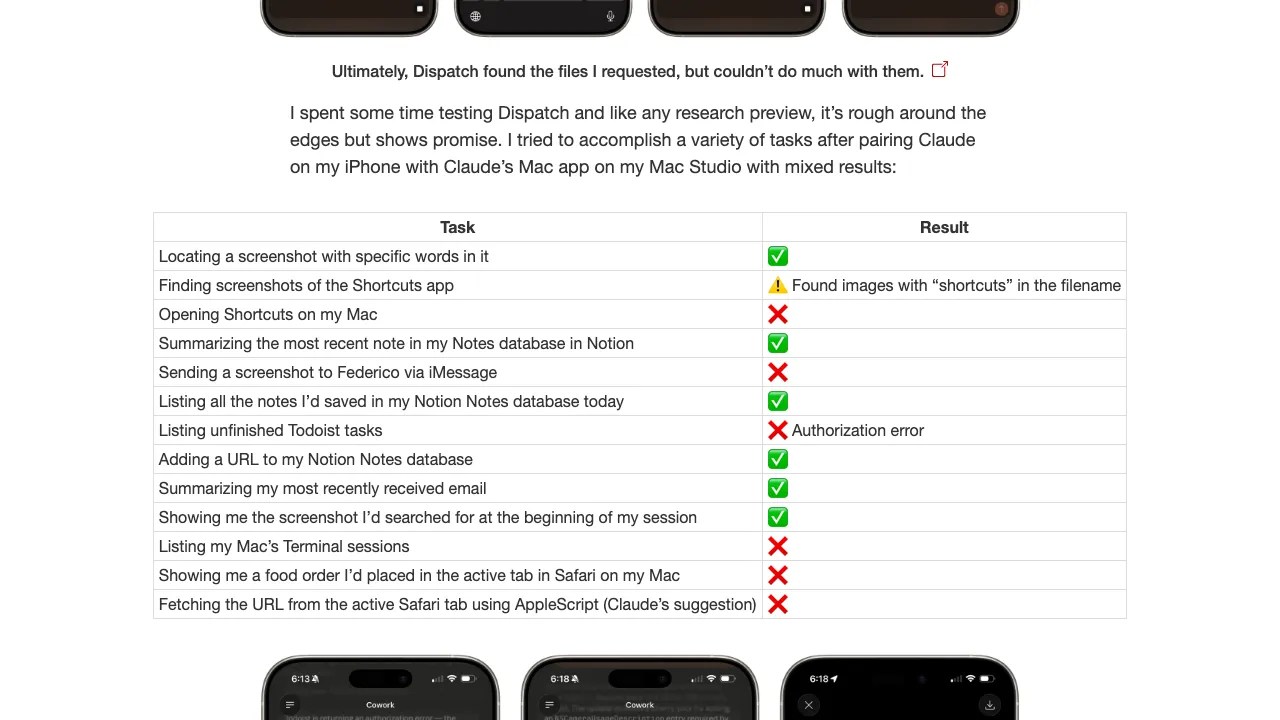
- Start with read-only tasks — information retrieval is significantly more reliable than write operations
- Always verify results on desktop — don’t assume a task succeeded just because your phone shows it completed
Security Considerations & Caveats
Giving your phone the ability to trigger file operations on your PC is a meaningful permission grant. Here’s what you should understand before fully committing:
- Code runs in a sandbox — executed code is isolated from your OS, reducing the risk of runaway processes
- Action confirmation dialogs — any operation involving writing, moving, or deleting files requires your explicit approval via a desktop dialog
- The catch with remote use: those dialogs appear on your desktop, not your phone. If you’re away from your PC, you won’t see them — tasks requiring confirmation will silently stall
- Only connect trusted Connectors — your Slack workspace, Google Drive, and other connected services become accessible through Dispatch. Review which Connectors are active before leaving tasks unattended
⚠️ Important — Computer Use Runs Outside the Cowork Sandbox
One spec the official Anthropic documentation calls out explicitly: when Dispatch uses Computer Use to drive real desktop applications, those operations run outside the Cowork virtual machine. Updating a spreadsheet in Excel, navigating an internal dashboard, or running a dev tool happens as a regular OS process — separate from Cowork’s code-execution sandbox and at native permission levels.
What this means in practice: a chain like “phone → Dispatch → Claude Desktop → Computer Use → real app” touches the actual filesystem, network, and connected services. An unexpected instruction or a malicious piece of content can cascade into hard-to-undo actions — reading, moving, or deleting local files; interacting with authenticated services; opening a phishing link in your browser. Only enable this chain if you’re comfortable with what every app and connector in it could do, not just what you intend them to do.
Dispatch vs. OpenClaw — How I Actually Split Them In Practice
I’ve been running both Claude Dispatch and OpenClaw in parallel, and they’ve settled into clearly different roles in my workflow. This isn’t a spec-sheet comparison — it’s how the two tools actually end up getting used day to day.
🔍 My Split — Dispatch vs. OpenClaw
- When I reach for Dispatch: quick, one-off tasks while I’m out — a research query, a file check, a fast “look this up for me” request. Because it lives inside the Claude mobile app I already have open, the friction is near zero.
- When I reach for OpenClaw: scheduled runs and broader desktop automation workflows. It’s stronger when you want to build a real pipeline that runs on a cadence or touches multiple tools across your PC.
The short version: unless you’re already a power user who’s comfortable configuring things yourself, I’d recommend Dispatch. OpenClaw is more flexible but also more work to set up and secure. For anyone who just wants “send task from phone, get result back,” Dispatch is the path of least resistance.
With that editorial out of the way, here’s how the two compare on the usual dimensions:
| Aspect | Claude Dispatch | OpenClaw |
|---|---|---|
| Execution | Desktop execution via Claude Desktop; Anthropic service involved | Cloud / configurable |
| Source | Closed (Anthropic) | Open source |
| Security posture | Sandboxed, confirmation gates | Prompt injection & config theft risks reported |
| Flexibility | Limited to Cowork ecosystem | 100+ skills, Telegram/WhatsApp support |
| Best for | Users who prioritize data privacy | Power users who want maximum capability |
If you’re handling sensitive business data and want the safer default, Dispatch wins. If you’re a developer or power user who wants broader integrations and doesn’t mind configuring security yourself, OpenClaw offers more headroom.
👉 Learn how Claude Cowork can automate your business workflows
Pricing & Plan Requirements (August 2026)
Dispatch has no separate charge. Anthropic’s current Help Center lists it as a Pro and Max beta capability. It does not confirm Free, Team, or Enterprise access on that page, so check the current Claude pricing page and your organization’s settings before relying on it.
| Plan | Dispatch | Requirement |
|---|---|---|
| Pro | Beta listed | Latest Claude Desktop and mobile apps |
| Max | Beta listed | Computer awake and Claude Desktop open |
For changing prices and eligibility, use the official Claude pricing page and the official Dispatch Help Center article.
My One-Week Review — What Actually Running It Taught Me
So far this guide has mostly covered features and troubleshooting. This section is the part you won’t find in a spec sheet: what a week of actual use felt like, in plain terms.
The First Task I Sent Was a Simple Research Query — And It Worked
My first Dispatch task wasn’t planned out. I was away from my desk and just fired off a basic research question from my phone, the same way I’d normally chat with Claude. The response came back without any drama, and the latency felt essentially identical to running the same query sitting in front of my PC. Any worry I had about “remote means slower and clunkier” turned out to be misplaced.
Where It Genuinely Earned Its Keep
The moment that sold me on Dispatch wasn’t a big workflow — it was the small one. Throwing a quick task from my phone while I was out, letting it run in the background, and checking the result later. I didn’t have to go back to the PC. That’s it. It sounds boring, but the ability to offload a small task on impulse and have it done by the time I need it is genuinely useful in a way I didn’t expect.
Honest Verdict — I Haven’t Put It Into My Critical Workflow Yet
That said, I haven’t folded Dispatch into my business-critical workflow yet. The potential is clearly there, but the research-preview-era wobbles and the requirement to keep a PC running 24/7 make it feel more like “great for casual offloading” than “a core piece of infrastructure I’d bet my day on.” Try it, enjoy it, but don’t rip up your existing automations for it just yet.
The 24/7 PC Reality — Electricity, Heat, Noise
A question almost everyone asks: do you have to leave a PC on all the time? In my case, I already have a machine that runs 24/7 for other purposes, so Dispatch didn’t add a new “always on” cost for me. But I want to be honest about the rest: in summer, the electricity bill and the heat from an always-on PC are noticeable. The fan noise isn’t a real issue for me, but the running cost is worth thinking about before you commit to using Dispatch heavily.
My Fallback — VPN Into the Home Network
To cover the worst case — Dispatch showing “connected” when the PC is actually unreachable, or me being out and realizing the desktop app crashed — I keep a VPN tunnel to my home network as a backup. If something looks off, I can VPN in and poke at the machine directly. Leaning entirely on Dispatch without that fallback left me nervous; adding VPN + remote desktop as a safety net made me much more comfortable relying on it while out.
On macOS I Haven’t Hit the Big Bugs
I’ve been running Dispatch primarily on macOS, and across the one-week test I haven’t hit any freezes or crashes. The iOS “infinite loading spinner” bug (GitHub Issue #34059) that’s been reported online hasn’t shown up in my usage either. Other people are reporting instability, and I don’t want to dismiss that — it’s worth calibrating expectations to the reality that how Dispatch feels depends heavily on your OS, your apps, and how you use it. Don’t assume your experience will match anyone else’s review until you’ve tried it yourself.
FAQ — Questions About Claude Dispatch (2026)
1. Does Dispatch work on Windows?
Yes. Dispatch is supported on both macOS and Windows (x64). Download the latest Claude Desktop from claude.com/download and you’re set. Note that Windows ARM is not currently supported — only x64 builds.
2. Do my phone and PC need to be on the same Wi-Fi network?
No — this is one of Dispatch’s more useful design choices. Pairing and task execution sync over the internet, so your phone can be on a cellular network while your PC is on home Wi-Fi and everything still works. You don’t need to be on the same local network.
3. What happens if my PC goes to sleep while a task is running?
The task stops immediately. There’s no queuing, no task resume, and no partial save of progress. When you wake your PC and reopen Claude Desktop, the conversation thread will still be there, but the interrupted task needs to be sent again from scratch. Prevent this by disabling sleep on your PC before dispatching long-running tasks.
4. Will I get a notification when a task finishes?
Yes — according to Anthropic’s official documentation, Dispatch sends a push notification to your phone when a task is done or when Claude needs your go-ahead to continue. That’s the design spec.
Honest caveat: I’ve been running Dispatch primarily on macOS and haven’t exhaustively verified the push notification behavior on every mobile configuration. If you’re expecting notifications and not getting them, the most likely culprits are the Claude app’s notification permission, OS-level Do Not Disturb / Focus settings, or the app being in an unusual foreground state. Check those first before assuming notifications are broken.
5. OpenClaw or Dispatch — which should I use?
It depends on your priorities. Dispatch combines a desktop execution environment with Anthropic cloud sessions, connected local resources, and computer-use permissions. If you want maximum flexibility and are comfortable managing a separate tool’s security configuration, OpenClaw may offer more integrations. In either case, review permissions and connected services before using sensitive data.
6. Do I need to re-pair my phone every time I use Dispatch?
The current official flow is a setup wizard rather than a QR-pairing step. Complete the setup for the account and devices you intend to use; if you change devices or sign out, check the Dispatch screen and repeat the setup if it asks you to.
7. Can I use Dispatch on a free Claude plan?
The current official Help Center lists Dispatch as a beta capability for Pro and Max. It does not list Free access or promise a Free-plan release date, so check the current Help Center and your account before upgrading solely for Dispatch.
8. Does Dispatch work on Claude Teams or Enterprise plans?
The current official Help Center describes Dispatch for Pro and Max and does not confirm Team or Enterprise availability. If the feature is missing from an organization plan, ask your IT administrator or Anthropic account contact.
9. Can I cancel a running Dispatch task mid-execution?
Yes — the most reliable way is to stop the session on the PC side by opening Claude Desktop and halting the active Cowork or Claude Code session. Sending a “cancel” or “stop” message from your phone sometimes works too, but if the model is deep in a tool call, the PC-side stop is the guaranteed path. Remember that Dispatch uses a single persistent thread, so cancelling a task doesn’t wipe the conversation — your next instruction will land in the same thread.
10. How do I retrieve output files that Dispatch created?
Dispatch saves generated files to your PC’s filesystem by default, and the mobile app’s direct-download UI is currently limited. The cleanest workaround is to sync your Cowork workspace folder with a cloud storage provider like Google Drive. Files Claude creates on the desktop appear on your phone via Drive automatically, and you can share them from there without touching the PC.
11. Is “Claude Code Dispatch” (the Telegram one) the same as Cowork Dispatch?
No, they’re different things that keep getting confused in search results:
- Cowork Dispatch (the feature this guide covers): Anthropic’s official integration. Pairs the Claude mobile app with Claude Desktop and remotely drives Cowork or Claude Code sessions.
- Claude Code Dispatch: a relay layer — often third-party — that lets you control a local Claude Code instance from messaging apps like Telegram. Different purpose, different implementation, different source.
When you’re evaluating tutorials, check which one they’re actually about before following the setup steps.
12. How do I disable or unpair Dispatch?
Both the mobile and desktop apps have a Dispatch settings panel where you can remove individual paired devices. If you want to fully shut the feature off, toggle Dispatch off in Claude Desktop or delete the connection from your Cowork settings. If you ever need to lock things down urgently — a lost or stolen phone, for example — change your Claude account password and terminate all active sessions as well, to make sure nothing paired earlier can still reach your PC.
Final Thoughts — Dispatch Is the First Step Toward an AI Assistant in Your Pocket
My verdict: Exciting potential, but not quite ready for a blanket recommendation
Dispatch is useful for sending work to a desktop from your phone, but the desktop must remain awake with Claude Desktop open. Start with low-risk, read-only tasks, review permissions and connected apps, and treat the current Pro/Max beta status as subject to change.
Here’s where things stand as of August 17, 2026:
- What works well now: Low-risk information retrieval and file-search tasks are a sensible starting point
- What needs patience: Complex multi-step write operations need review. Push notifications are part of the official design; check app and OS notification permissions if they do not appear.
- Two things that prevent most issues: Keep both apps fully updated, and disable PC sleep before dispatching anything important
- The bigger picture: Dispatch is Cowork’s remote interface — it inherits everything you’ve already configured, which means the more you invest in your Cowork setup, the more you get out of Dispatch
If you’re already on Claude Pro or Max and use Cowork regularly, there’s no reason not to enable Dispatch today. Start with simple read tasks, get a feel for the reliability, and build up from there. The “AI assistant in your pocket” vision isn’t fully here yet — but with Dispatch, it’s closer than it’s ever been.
👉 Claude Cowork for business automation — full guide with real use cases
👉 Claude Code: CLI vs. Web vs. Desktop — which version should you use?


![Harden Claude Code CLI: 9 Proven Steps for Business Use [2026]](https://i0.wp.com/devgent.org/wp-content/uploads/2026/03/claude-code-security-eyecatch.webp?fit=300%2C167&ssl=1)


Author
krona23
Over 20 years in the IT industry, serving as Division Head and CTO at multiple companies running large-scale web services in Japan. Experienced across Windows, iOS, Android, and web development. Currently focused on AI-native transformation. At DevGENT, sharing practical guides on AI code editors, automation tools, and LLMs in three languages.
📚 Related Articles
- ✅15 Claude Code Productivity Tips That Transform Your Daily Workflow [2026]
- ✅Claude Code Security Settings: 9 Essential Steps for Business Use [2026]
- ✅Claude Code Skills — The Complete Guide to Custom Slash Commands (2026)
- ✅Claude Code Commands Cheat Sheet — Every Slash Command, Shortcut & Hidden Feature (2026)


🔥 Most Popular




Leave a Reply