📅 Last updated: June 2026
📑Table of Contents
- What Is Cursor?
- Essential Cursor Features — What It Can Do
- Why Choose Cursor First — Key Strengths
- Cursor Pricing Plans [2026]
- Cursor vs VS Code: What’s the Difference?
- My Migration Story — Why I Left and Why I Still Recommend Cursor
- Drawbacks & Honest Considerations
- Getting Started — Quick Setup Guide
- Frequently Asked Questions
- Conclusion
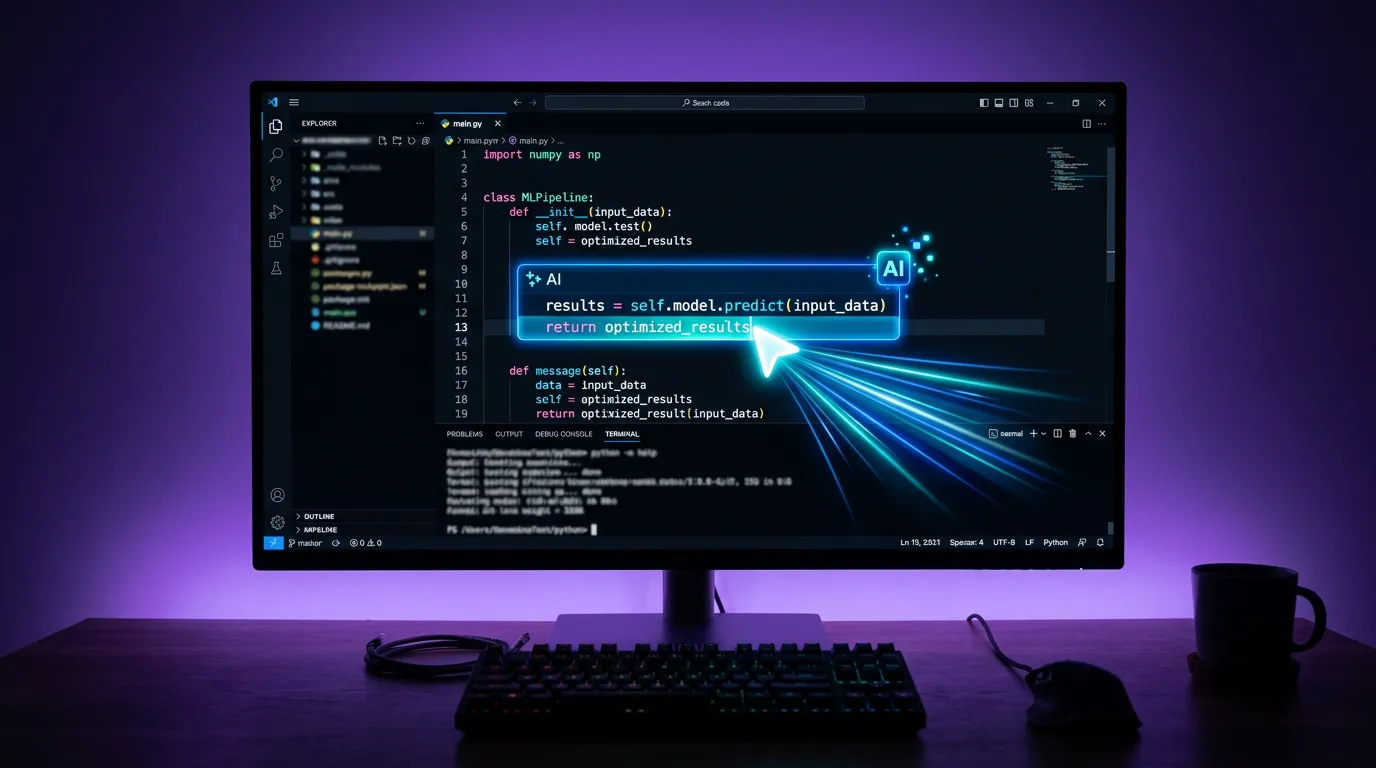
In the age of AI-assisted coding, Cursor stands as the most widely adopted AI code editor. “I’ve heard of it, but what can it actually do?” “How is it different from VS Code?” After using Cursor since its early days — and briefly switching to Devin Desktop (formerly Windsurf) before coming back — I can offer a grounded perspective on its Cursor features, strengths, and limitations. Cursor used to be synonymous with “AI editor,” but there are now many alternatives. I’ve personally moved from Cursor to Windsurf and now use Zed as my primary editor — yet Cursor remains, in my view, the most orthodox and reassuring option out there. If you’re looking for a reliable starting point, it’s hard to go wrong here.
Cursor isn’t just for programmers — it’s also valuable for business professionals looking to leverage AI for document management, data processing, and workflow automation. I’ve recommended it to several non-technical colleagues, and those open to trying new tools picked it up remarkably fast. This guide covers everything you need to know about Cursor features and how to get started.
| Item | Details |
|---|---|
| Developer | Anysphere |
| Base | VS Code (fork) |
| Pricing | Free–$200/mo |
| Key Features | AI code completion, Agent mode, Chat, Background Agent, Project Rules |
| AI Models | Composer (Cursor’s own), GPT-5.5, Claude Opus 4.8, Gemini 3.1 Pro, Grok (switchable) |
| Website | cursor.com |
What Is Cursor?
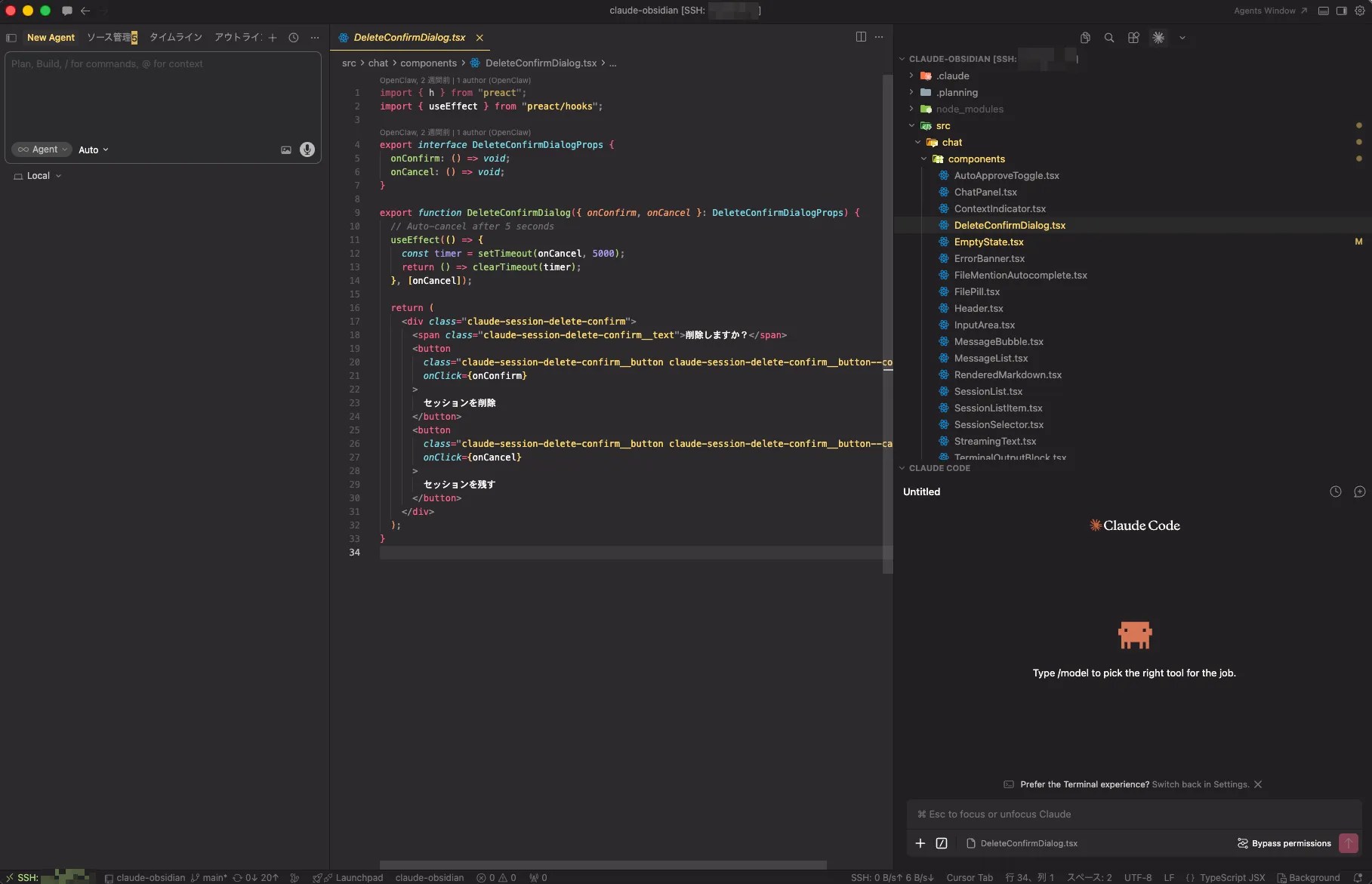
Cursor is an AI-powered code editor developed by Anysphere. Built on top of VS Code, it looks and feels nearly identical — your existing extensions, keybindings, and settings carry over seamlessly, making the migration cost virtually zero.
In my experience, what truly sets Cursor apart isn’t any single feature — it’s the sheer size of its user community. With hundreds of thousands of developers using it daily, you’re rarely the first person to hit a given problem. I started using Cursor right after its release, and that kind of collective knowledge base has been invaluable when troubleshooting at 2 AM. It’s the single biggest reason I still recommend it as a first AI editor, even though I’ve since moved to other tools for my own workflow.
Essential Cursor Features — What It Can Do
① AI Code Completion (Tab)
Understands your entire project context and suggests multi-line completions. When I’m editing files, it consistently predicts what I was about to write next — not just the current line, but entire blocks of logic. Just press Tab to accept. It’s one of those Cursor features that feels invisible once you’re used to it.
② Inline Editing (Cmd+K)
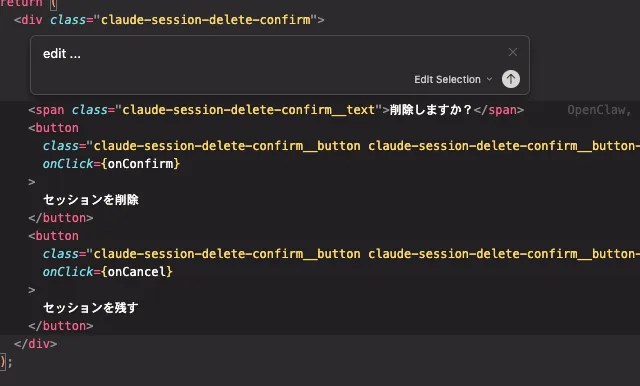
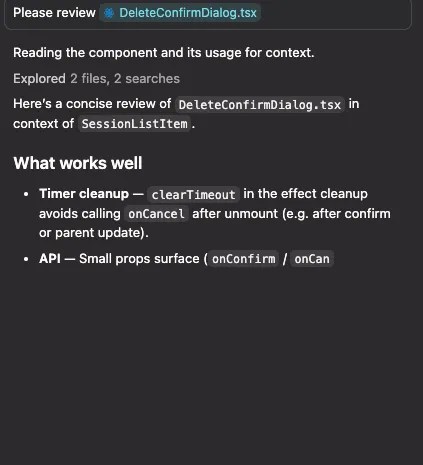
Select code, press Cmd+K, and describe what you want in plain language. I regularly use prompts like “Please review this code” or “Add error handling here” — and it rewrites the selection in seconds. Great for quick refactors without leaving your flow.
③ AI Chat
Indexes your entire codebase to answer questions. I use it for code review requests, error investigation, and asking “What’s causing this bug?” — like having a pair programmer on demand. It also handles fix requests: describe the problem and it suggests the exact changes needed.
④ Agent Mode
Give a high-level instruction like “Generate test code for this module” and the agent autonomously creates files, writes code, runs commands, and fixes errors across multiple steps. After testing it extensively, I’ve found that Agent mode limitations that existed before have been significantly improved — there are almost no weak areas now. Projects that would take months can realistically be completed in 1–2 weeks with AI agents.
⑤ Background Agent & Parallel Agents
Introduced in 2025 and expanded in Cursor 2.0 (October 2025) to run multiple agents in parallel, this feature executes tasks in cloud sandboxes asynchronously. Hand off an issue and let it write the code while you work on something else — like having a junior engineer working in the background. It’s especially useful for parallelizing your workflow.
⑥ Project Rules (.cursor/rules)
Define project-specific instructions that the AI follows automatically. The current format places .mdc rule files in a .cursor/rules directory, letting you scope rules to specific file patterns (the legacy single .cursorrules file is still read). I’ve used it to set basic rules like “respond in Japanese” and project-level conventions for code style and architecture. It made development noticeably more efficient — the AI stops making assumptions and follows your standards from the start.
Why Choose Cursor First — Key Strengths
👥 Massive User Base and Knowledge Pool
Anysphere, Cursor’s parent company, was reported to have surpassed $500M ARR in 2025 — a testament to the enormous number of developers using it daily. Search “Cursor + error message” on Stack Overflow, Reddit, or YouTube, and you’ll find solutions to virtually any problem. I’ve personally found answers on Reddit and community forums countless times — often within minutes. In the still-maturing AI editor space, community size is a critical factor in whether you can productively stick with a tool long-term. It’s the main reason I recommend Cursor first: it has the largest user base among AI editors (outside VS Code itself), making it the easiest place to find help when you’re stuck.
🔌 Full VS Code Compatibility
Because Cursor is a fork of VS Code, your extensions, themes, keybindings, and settings files work out of the box. The reassurance of knowing you can switch back to VS Code anytime keeps the adoption barrier exceptionally low. ESLint, Prettier, GitLens — your entire toolchain comes along, so you gain AI capabilities without disrupting your workflow. For a deeper look at what VS Code offers on its own, see our What Is VS Code? Features and Complete Guide.
🤖 Multiple AI Model Support
Switch between frontier models like GPT-5.5, Claude Opus 4.8, Gemini 3.1 Pro, and Grok depending on the task at hand. For example, use Claude Opus 4.8 for complex implementation and the fast Composer model for quick edits. Composer is Cursor’s own agent-tuned model, introduced with Cursor 2.0 in October 2025, that returns most responses in under 30 seconds. For the heaviest reasoning tasks, you can always select each provider’s top-tier model.
⚡ Auto Mode — Unlimited and Free
Auto mode is Cursor’s default and costs zero credits — it’s completely unlimited on all paid plans. Cursor automatically selects the best model for each task, so you get strong results without worrying about usage limits. In my experience, Auto mode covers 80–90% of daily tasks. You only need to switch to a specific premium model (which consumes credits) for particularly complex reasoning or large-scale refactors. This makes Cursor one of the most cost-effective AI editors available.
🌐 Works in Your Language
Chat, Cmd+K, and Agent mode all accept instructions in natural language — including Japanese, Spanish, and more. The UI is also localizable. You can even add a rule in .cursor/rules to specify your preferred response language.
Cursor Pricing Plans [2026]
Cursor offers six tiers, from a free Hobby plan to the $200/mo Ultra plan. Since June 2025 it uses a credit-based system where your monthly fee doubles as your credit allowance, and Auto mode (the default) is unlimited and costs no credits — so even the $20/mo Pro plan goes a long way. My advice: start free, then move to Pro once you reach for AI throughout the day.
👉 For all six plans compared, per-model costs, Ultra exhaustion reports, and cost-saving tips, see our Complete Cursor Pricing Guide [2026].
Cursor vs VS Code: What’s the Difference?
“So how is Cursor actually different from VS Code?” — this is the most common question. Cursor is built from VS Code’s source code (a fork), so the editor foundation is identical. The difference lies in how deeply AI is integrated.
| Feature | Cursor | VS Code + Copilot |
|---|---|---|
| AI Integration | Native, editor-wide | Added via extension |
| Agent Mode | Autonomous file creation, terminal, error fixing | Copilot Agent (limited) |
| Background Agent | Cloud sandbox, async task execution | Not available |
| Model Support | Composer, GPT-5.5, Claude Opus 4.8, Gemini 3.1 Pro — switchable | Primarily GPT-based (via Copilot) |
| Codebase Understanding | Indexes entire project | Primarily open files |
| Project Rules | .cursor/rules (.mdc) for per-project AI behavior | Limited (Copilot instructions) |
| Extensions | VS Code compatible (works as-is) | Native support |
| Pricing | Free – $20/mo (Pro) | VS Code free + Copilot $10/mo |
Source: Cursor / VS Code official sites (as of June 2026)
In short: VS Code + Copilot adds AI to an existing editor; Cursor is an editor designed around AI from the ground up. Having used both extensively, I can say that Cursor’s AI integration feels a level deeper — context awareness, codebase indexing, and multi-model switching all feel more seamless. The Background Agent feature in particular has no equivalent in VS Code + Copilot. If you want to maximize AI-assisted development, Cursor offers a noticeably better experience. For comparisons with other AI editors, see our AI Code Editor Comparison.
My Migration Story — Why I Left and Why I Still Recommend Cursor
I started using Cursor right after its initial release. For a while, it was my primary editor for web application development. However, I eventually moved to Windsurf after hearing its agent capabilities were stronger — and they were. Windsurf’s agent was particularly impressive for complex design tasks and multi-file refactoring.
But after OpenAI’s acquisition of Windsurf, the development pace slowed and agent performance plateaued. It’s no longer my primary editor either. I now use Zed for day-to-day work.
So why do I still recommend Cursor first? Three reasons:
- Largest user community among dedicated AI editors — finding solutions when you’re stuck is dramatically easier
- VS Code compatibility means zero migration friction and a safe fallback
- Agent mode has caught up — the limitations I left over have been significantly improved. With Auto mode unlimited and Background Agent available, the gap with competitors has narrowed
If you’re a full-time engineer pushing agent capabilities to the limit, you might eventually explore alternatives like I did. But for most developers — and especially for anyone starting their AI editor journey — Cursor is the safest and most productive starting point.
Drawbacks & Honest Considerations
⚠️ Things to Know Before You Start
- Cloud dependency — AI features rely on cloud LLMs, so completions and chat don’t work offline. You can still edit code normally, but the AI assistance stops.
- Code privacy — Code is sent to the cloud for AI processing. Enable Privacy Mode to ensure your code isn’t stored or used for training. Verify alignment with your company’s security policies.
- VS Code update lag — As a fork, Cursor may lag behind VS Code’s latest updates by days or weeks.
- Cost for serious use — The free Hobby plan has tight usage limits; daily use requires Pro ($20/mo). This is standard pricing compared to competitors like Windsurf.
- AI over-reliance — Always review AI-generated code. Agent Mode output in particular should be carefully verified for security issues and bugs.
- YOLO mode risk — YOLO mode is very convenient as it eliminates the need to approve every agent action. However, the agent can execute dangerous commands (like deleting files or modifying production configs). Use it with full awareness of the risks, and always work with Git version control.
- Limited English-only documentation — Some official docs and changelog details are primarily in English. That said, the large community means you’ll find Japanese, Spanish, and other language resources on blogs, YouTube, and forums — far more than with any competing AI editor.
- Heavy users may outgrow Pro — If you burn through credits quickly with premium models, consider Pro+ ($60/mo) or Ultra ($200/mo).
Getting Started — Quick Setup Guide
You can start using Cursor in three simple steps:
- Download the installer from cursor.com (macOS / Windows / Linux)
- On first launch, import your VS Code settings — extensions, keybindings, and themes transfer automatically
- Open a project and press Cmd+L to launch AI Chat — you’re now coding with AI
For detailed installation and setup instructions, see our How to Install Cursor — macOS & Windows Guide.
Frequently Asked Questions
👉 Cursor Agent Mode Explained in Detail
Conclusion
The Proven Choice
for Your First AI Editor
I eventually moved on because I wanted stronger agent capabilities for complex engineering work — but for anyone starting out, Cursor is still the best first choice. Its massive user community means solutions to common problems are easy to find. Auto mode is unlimited, the feature set is comprehensive, and VS Code compatibility means zero migration risk.
Start with the free Hobby plan. If it clicks, upgrade to Pro. If it doesn’t meet your needs, you can always explore alternatives — but most developers find everything they need right here.
👉 AI Code Editor Comparison — Developer Guide
👉 How to Install Cursor — macOS & Windows
👉 Cursor vs Windsurf: Complete Comparison
👉 Cursor vs Antigravity Comparison
👉 What Is VS Code? Features and Complete Guide
👉 What Is an AI Agent? Essential Tools Guide


![How to Install Cursor on macOS & Windows — 5-Minute Setup [2026]](https://i0.wp.com/devgent.org/wp-content/uploads/2026/03/wp-upload-cursor-install-step01_access_site.png?fit=300%2C186&ssl=1)


Author
krona23
Over 20 years in the IT industry, serving as Division Head and CTO at multiple companies running large-scale web services in Japan. Experienced across Windows, iOS, Android, and web development. Currently focused on AI-native transformation. At DevGENT, sharing practical guides on AI code editors, automation tools, and LLMs in three languages.
🔥 Most Popular
- Claude Pricing: I Tested All 5 Plans — Here's My Verdict (2026)
- Claude Desktop Won't Install? Windows & Mac Fixes That Worked (2026)
- How to Spot and Defend Against Two-Stage Phishing Emails in 2026
- Docker Sandboxes (sbx) Guide: Run Claude Code Safely in a microVM
- n8n vs Dify vs Zapier vs Make: Tested in Production (2026)




Leave a Reply